Watch a request change the project
Type to the chat, and see each change of the project where it occurs
The project page of Trove has the tabs on the left and the chat on the right. The Activity tab records each change of the project. You type a request to the chat. The model writes the specs, starts the lanes and changes the files. You see each change where it occurs, at the time it occurs.
The parts of the project page
- Open a project from Trove home. See Find your way in Trove.
- Find the two parts of the project page:
- The tabs Lanes, Specs, Files, Activity and Settings, on the left.
- The Chat pane, on the right.
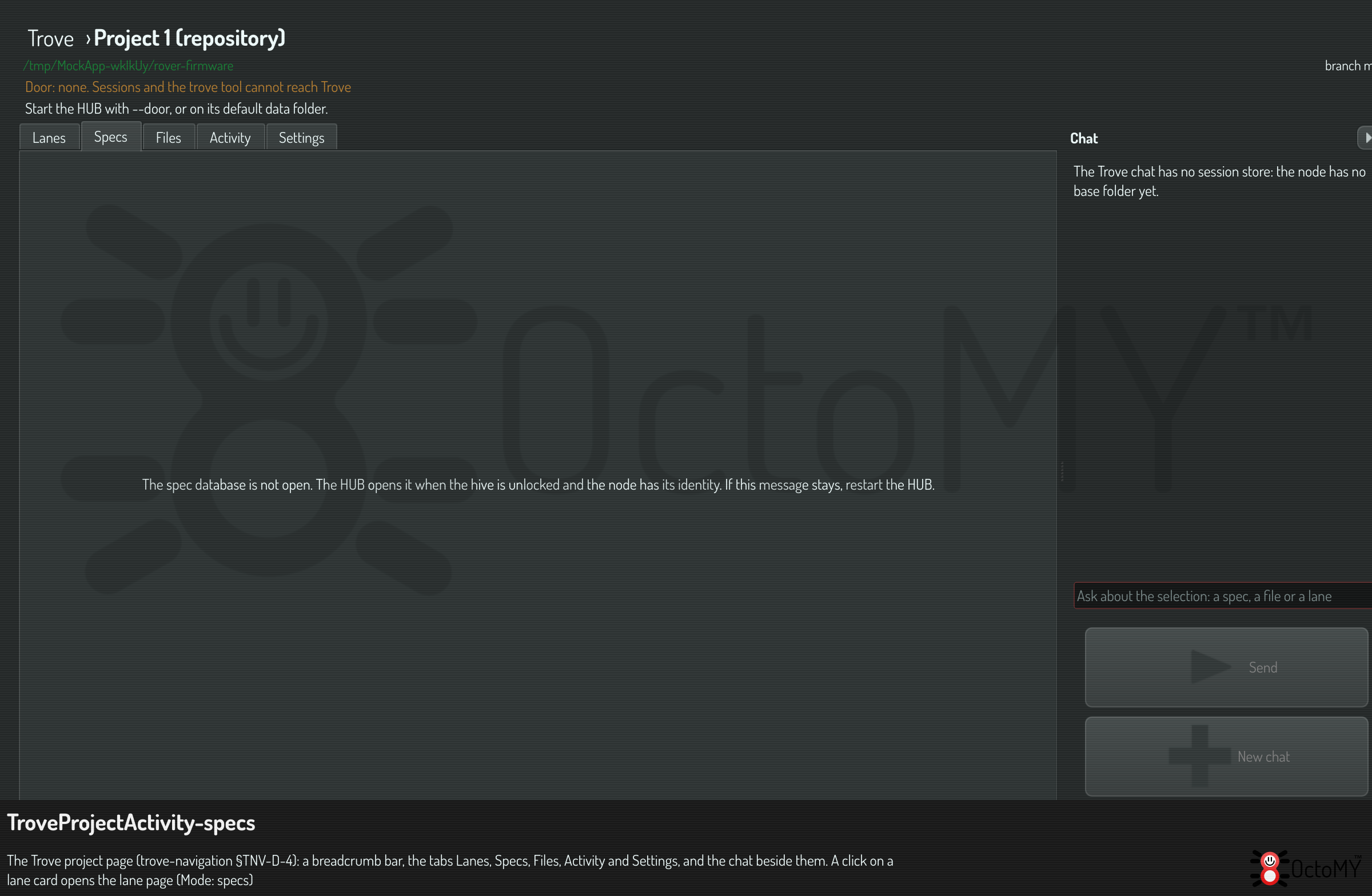
Drag the border between the tabs and the chat to give a part more room. The project page keeps the width in the settings of the node, and opens with it the next time.
Type a request
- Select a spec, a section or a work unit in the Specs tab, or a file in the Files tab. To ask about a lane, right-click its card on the Lanes tab, and choose Ask the chat about this lane.
- Read the line above the chat. It names the last thing that you selected.
- Type the request, for example "add a unit to this section for the
slip test", and push
Enter.
The request is about the selection on the context line. You do not have to name it again. Each message gives the model the selection of that message:
- For a file, its full path, its folder, its lane, and what changed in it since the lane's branch started. For a file that git does not track yet, its first lines. So "what changed in this file?" gets an answer.
- For a lane, its worktree and its branch.
The chat pane stays when you change the tab. Its messages and the text that you typed stay too.
Watch the changes
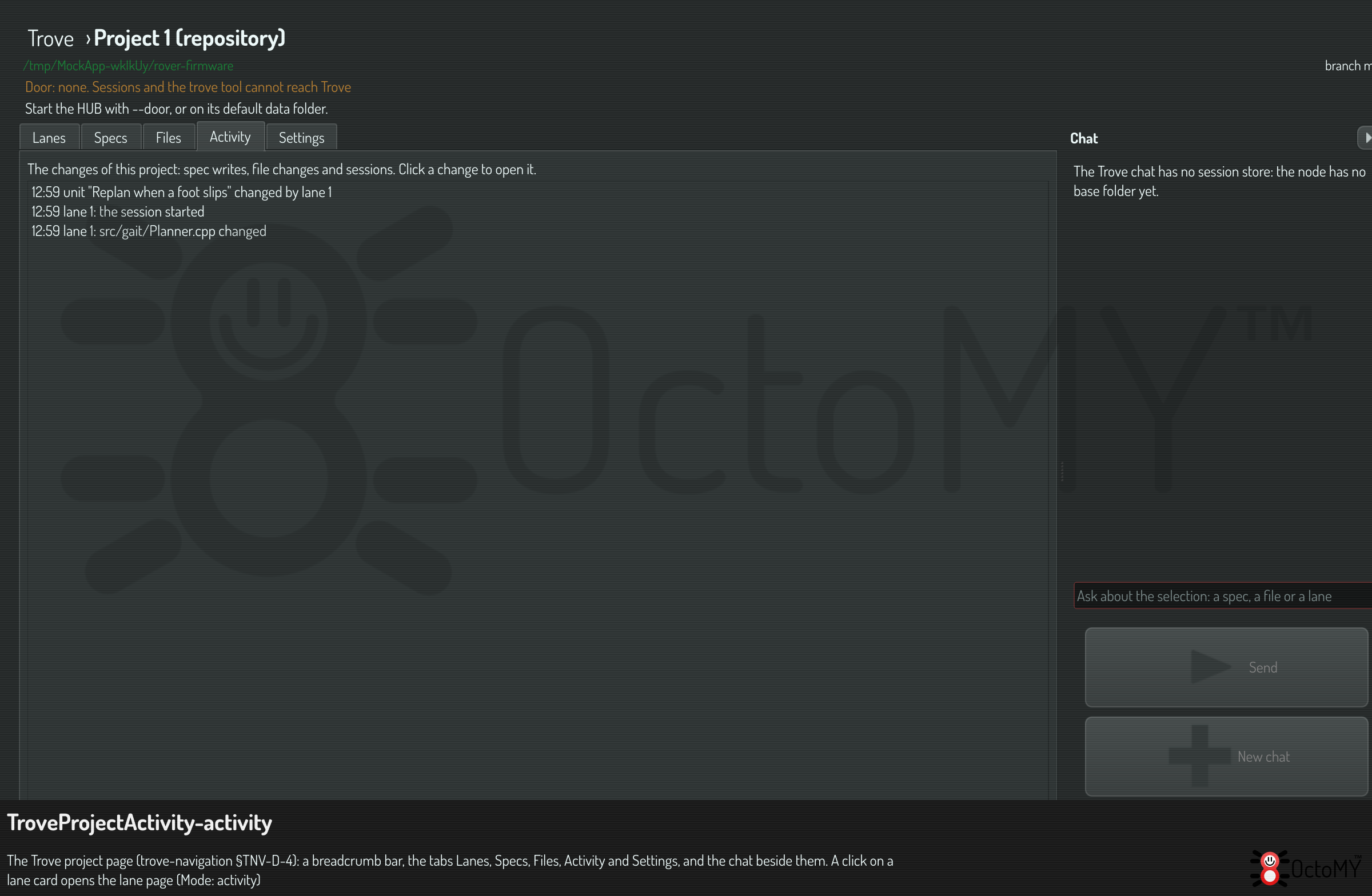
Each change of the project adds a line to the Activity tab, newest last. The list holds the changes since the project page opened:
| Change | Line, for example |
|---|---|
| A write to the spec database | 12:01 unit "Replan when a foot slips" changed by lane 1 |
| A session of a lane starts, ends a turn, or ends | 12:02 lane 1: the session started |
| A file of a lane's worktree changes | 12:03 lane 1: src/gait/Planner.cpp changed |
A change that a turn of the chat caused ends with the number of the turn, for
example , chat turn 3. The writer is the operator, a lane, the chat, or the
name that the writer gave.
Click a line to show what it changed:
- A spec write selects its spec, section or unit in the Specs tab.
- A file change opens the file in the Files tab, in the lane's worktree.
- A session line opens the lane page of its lane.
The tree of the Specs tab marks a row that another writer changed. The mark is a bar at the left edge of the row, and it fades in 60 seconds. It does not move the selection or the scroll. The tooltip of the row names the writer.
Only a write of an OPAL session flashes the row or the field: a session in a
lane, or the chat. Your own edit in another view of the project page does
not flash. The tooltip of a flashing field names the writer, for example "Changed
by lane 1" or "Changed by the chat". The node setting
appearance.flashChanges switches every flash off.
A file that a program changes without a new file name does not always show at once. The project page also looks at each lane's worktree at the end of each turn of a session.
Many programs save a file in two steps: they write a temporary file, then give it the real name. The list does not show the temporary file. A file that is added and removed again within 5 seconds leaves no line.
Confirm a dispatch in the chat
Two tasks ask you at each call: trove.dispatch, which starts the work of a
unit in a lane, and spec.workunit.delete. When the model calls one of them,
the chat shows a card with the task and its arguments.
- Read the task and the arguments on the card.
- Push Approve & run to let the call run, or Cancel to stop it.
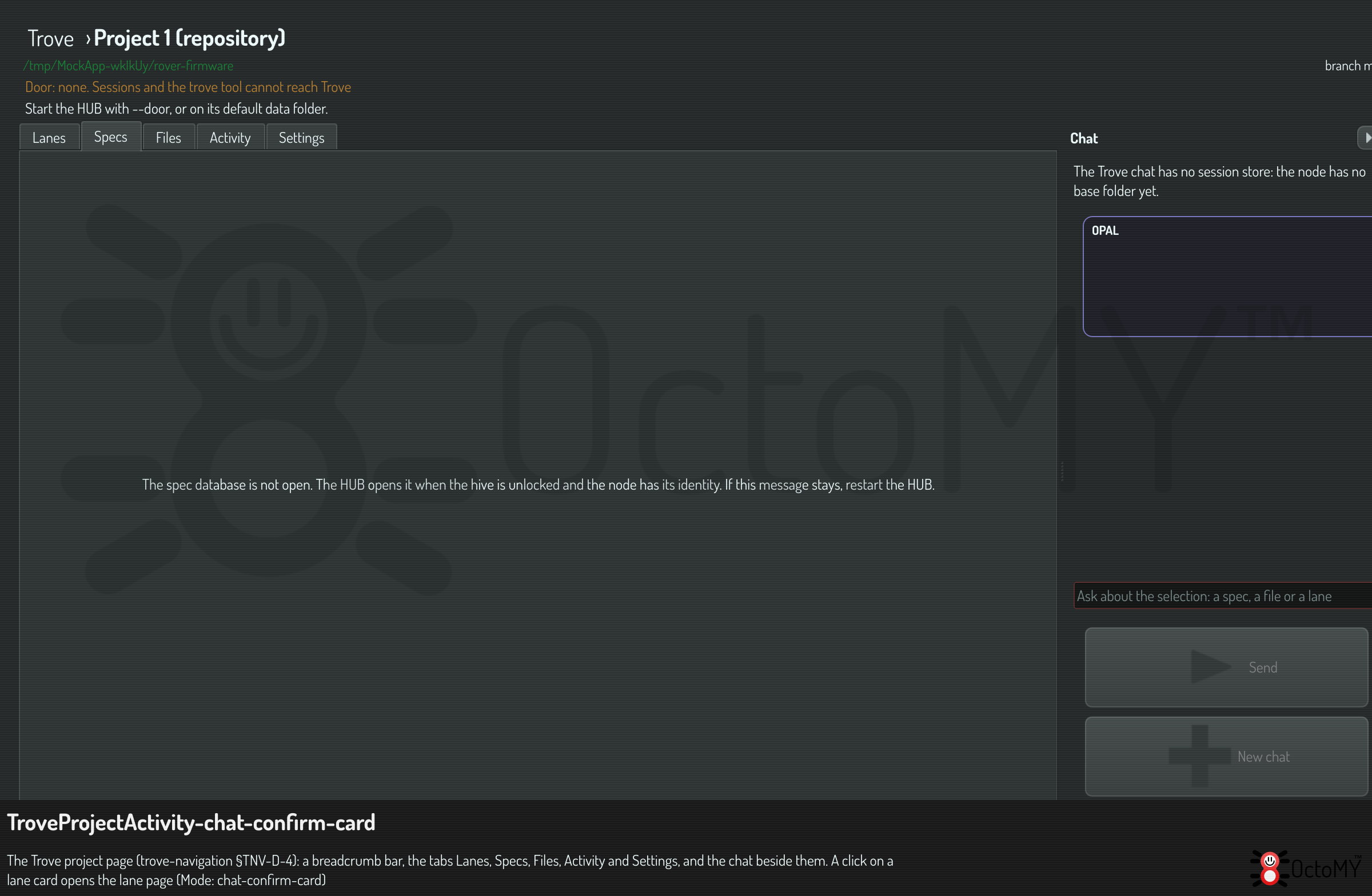
If you do not answer in 60 seconds, the call is refused. The card then shows Canceled, and the chat says that no answer came in time.
You answer once for each act. A plan that you start with Execute asks no more: that click approved each step, and the arguments are on the card of the plan.
When a dispatch runs, the page does not change. The chat shows a line, for example "Lane 1 started", with a link that opens the lane page. The card of the lane on the Lanes tab shows the new state.
Plans that run at once
The model gives its work as a plan of tasks. If each task of the plan is granted to the chat, or asks at each call with a card, the plan runs when it arrives. The card of the plan stays in the chat, with its result. A plan with a task that needs a grant waits until you push Execute.
A read of the spec database needs no grant, so it runs at once from the start. A write needs a grant. Your Execute click on a plan approves that plan, and grants its tasks to the chat until you start a new chat. So the first plan that writes waits for Execute, and a later plan with the same tasks runs at once.
To make every plan wait for Execute, set chatRunsGrantedPlans to off.
Set it for all projects, or for one project, in the Trove settings. See
the settings reference.
Follow the session of a lane
- Open the Lanes tab.
- Click a lane card.
The lane page opens. Its stream shows the session of the lane as it runs. The stream holds the text of the model, its thinking, and a line for each tool that it uses. Push Back to come back to the project page.
Collapse the chat
- Push the arrow at the top right of the chat pane.
The chat becomes a narrow strip. When a turn of the chat ends while the strip shows, a mark shows on the strip. Push the arrow of the strip to open the chat again. The project page keeps your choice, and opens the same way the next time.
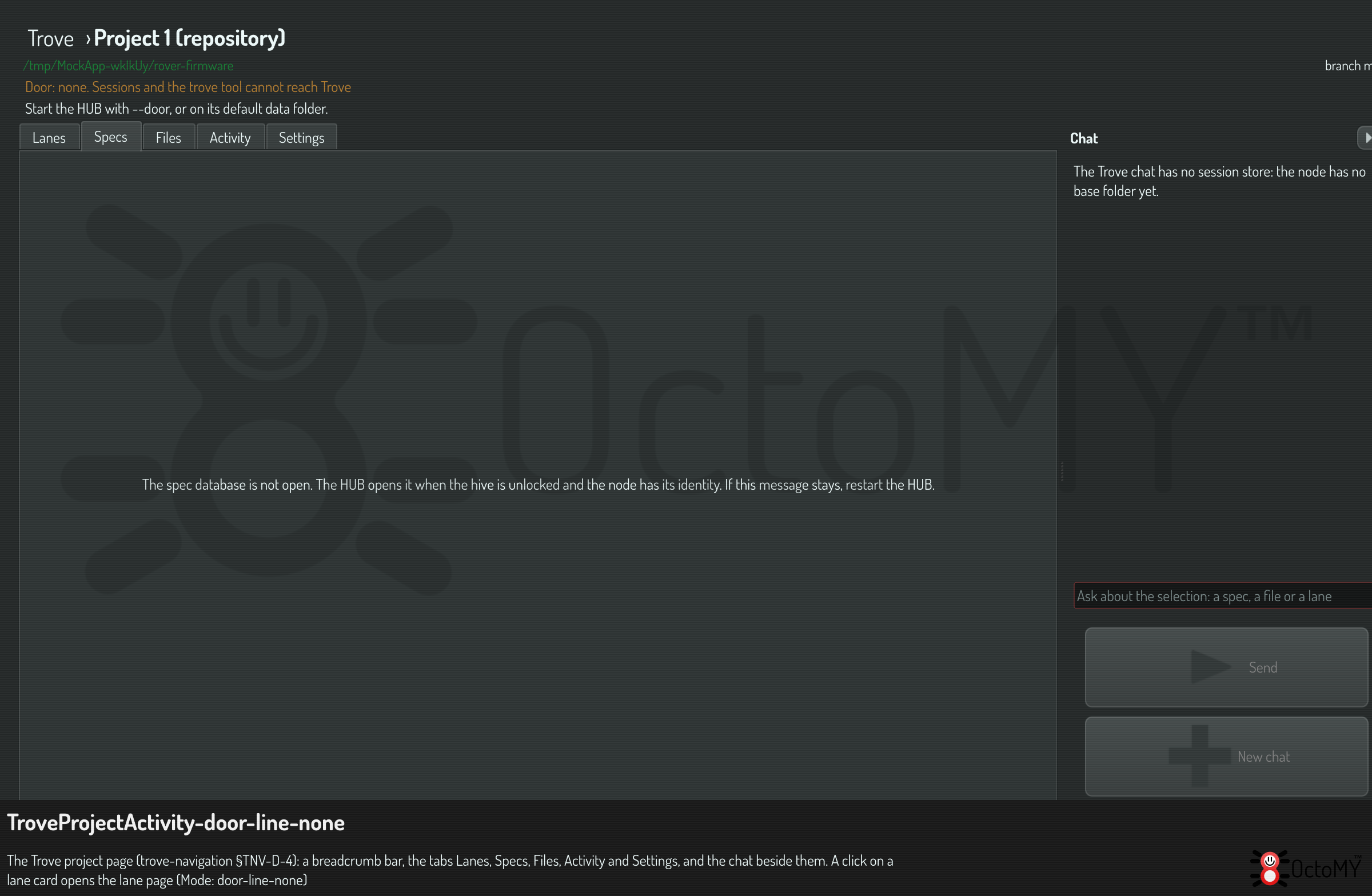
Read the door line
The door line on Trove home says which process serves the door of Trove on this
computer. Sessions and the trove tool reach Trove through the door. The
project page shows the door line only when the door has a problem: no door, or
no spec database.
| Line | What to do |
|---|---|
| Door: served by this HUB | Nothing |
| Door: served by process N | Nothing. This app runs no Trove part while that process holds the door |
| Door: none. Sessions and the trove tool cannot reach Trove | Start the HUB with --door, or on its default data folder |
| Door: no spec database | A head-less host whose hive has a passphrase needs the setting "Passphrase file of the door host". A node with no identity needs one first |
Go to another project
- Click Trove in the bar at the top of the page.
- Click the card of the other project.
No control on a project page opens another project. Trove home is the overview of every project.
Move a spec into this project
A spec that you made before its project existed belongs to no project. The project page of each project lists such a spec under the group No project, at the end of the Specs tab.
- Select the spec under No project.
- Push Move to this project on its page. You can also right-click the spec in the tree and choose Move to this project.
The spec moves into the project of this page. It leaves the No project group of every other project page. With All projects ticked, every spec shows at the top of the tree, and the group does not show.