Edit specs in the workspace
Read, fix and run work units on the Specs tab, and see the files of each lane on the Files tab
The Specs tab of the Trove project page shows the spec database as a tree of specs, sections and work units. Use it to read what a spec holds, fix a word in a work unit, set a status, or hand a unit to a lane, with no conversation in between. The Files tab beside it shows the files of the project and of each lane, so you can see what a session changed and fix a line yourself.
The workspace and the OPAL conversation write through the same spec.* tasks.
Whichever you use, the Definition of Done stays mandatory and every change goes
into the unit's history.
Open the Specs tab
Open a project from Trove home. The project page opens on its Specs tab, in front of Lanes, Files, Activity and Settings. See Find your way in Trove.
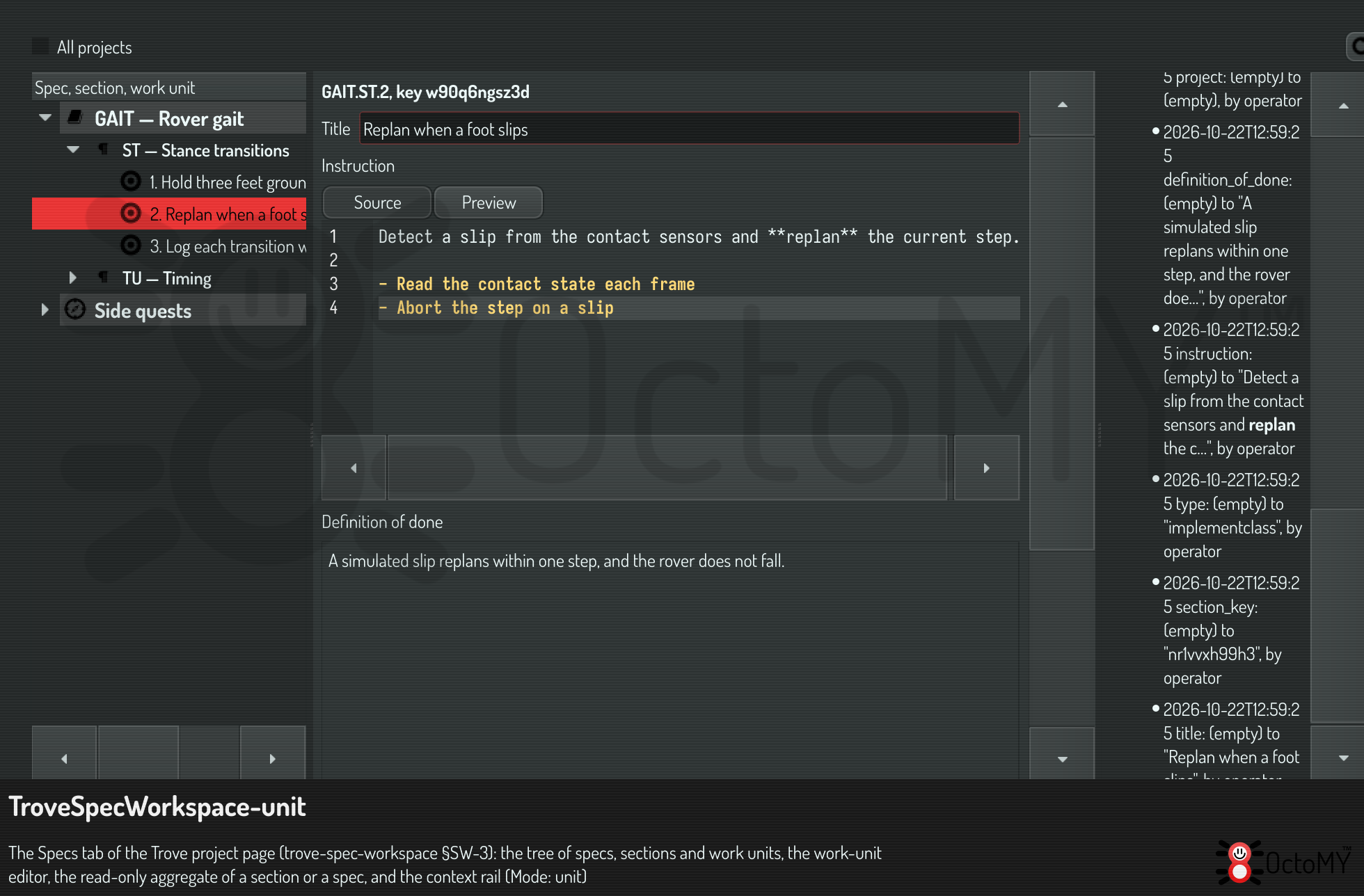
The tab has three panes, and one selection drives all of them:
- The tree, on the left, lists the specs of this project. Each spec opens into its sections, and each section into its work units. The side quests of the project are one more group at the end. The second column counts the finished units, for example 1 of 3 done.
- The detail, in the middle, shows what you selected.
- The context rail, on the right, shows where the selected unit stands.
The tree shows this project only. Tick All projects to see the specs and side quests of every project in the database. Press the reload button to read the database again after another session has written to it.
The tree loads a section a window at a time as you scroll, so a section with thousands of units opens as fast as a small one.
Read a section or a spec
Select a section to read the bodies of all its work units in one list. Each unit shows its instruction and its Definition of Done.
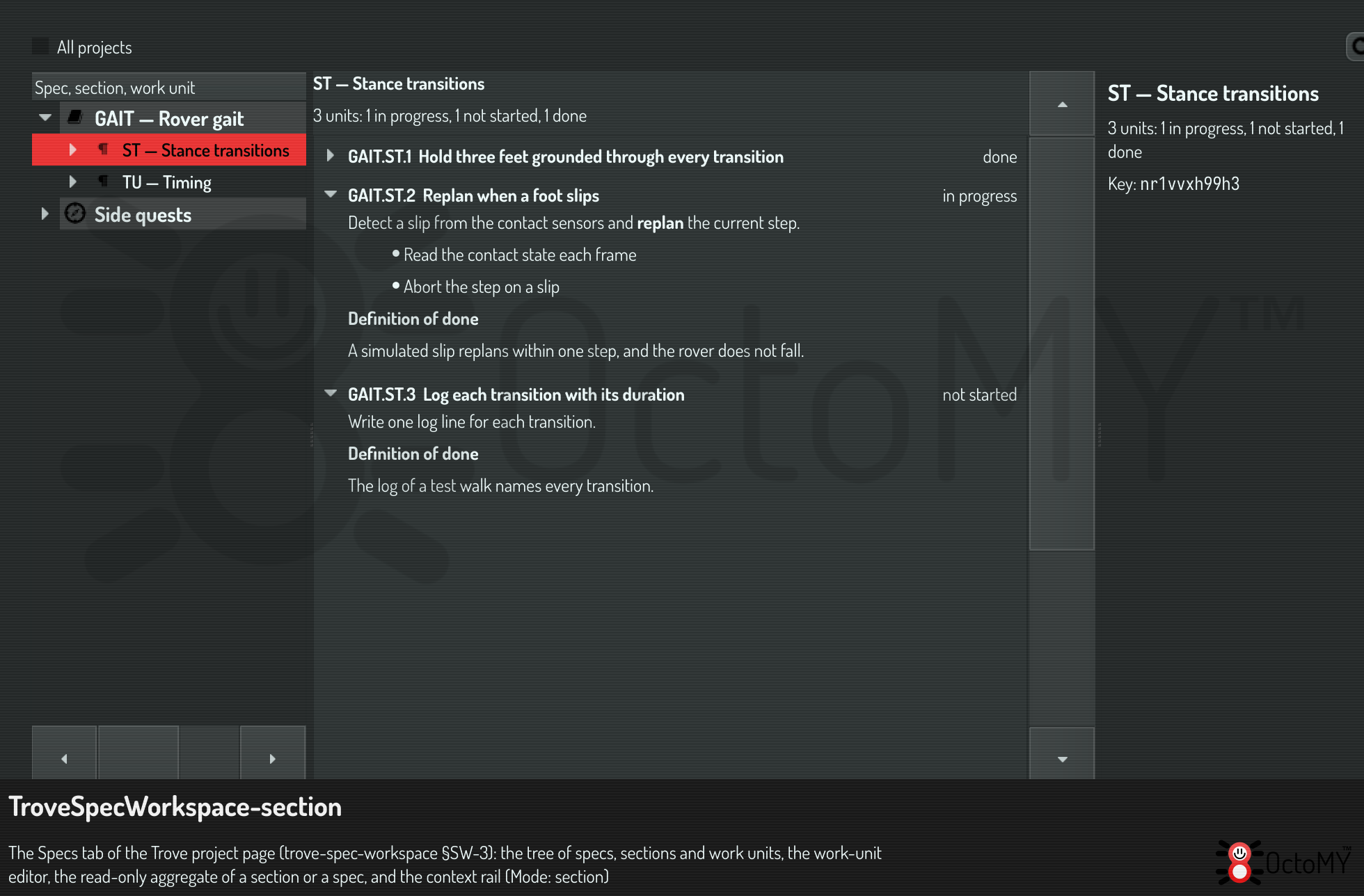
Every unit is there, finished ones included. A unit that has finished starts collapsed to its title line, so the open work stands out. Click a unit to open or close it. The line at the top counts every unit of the section by status.
Select a spec to read all its sections in order, each under a header with its own count:
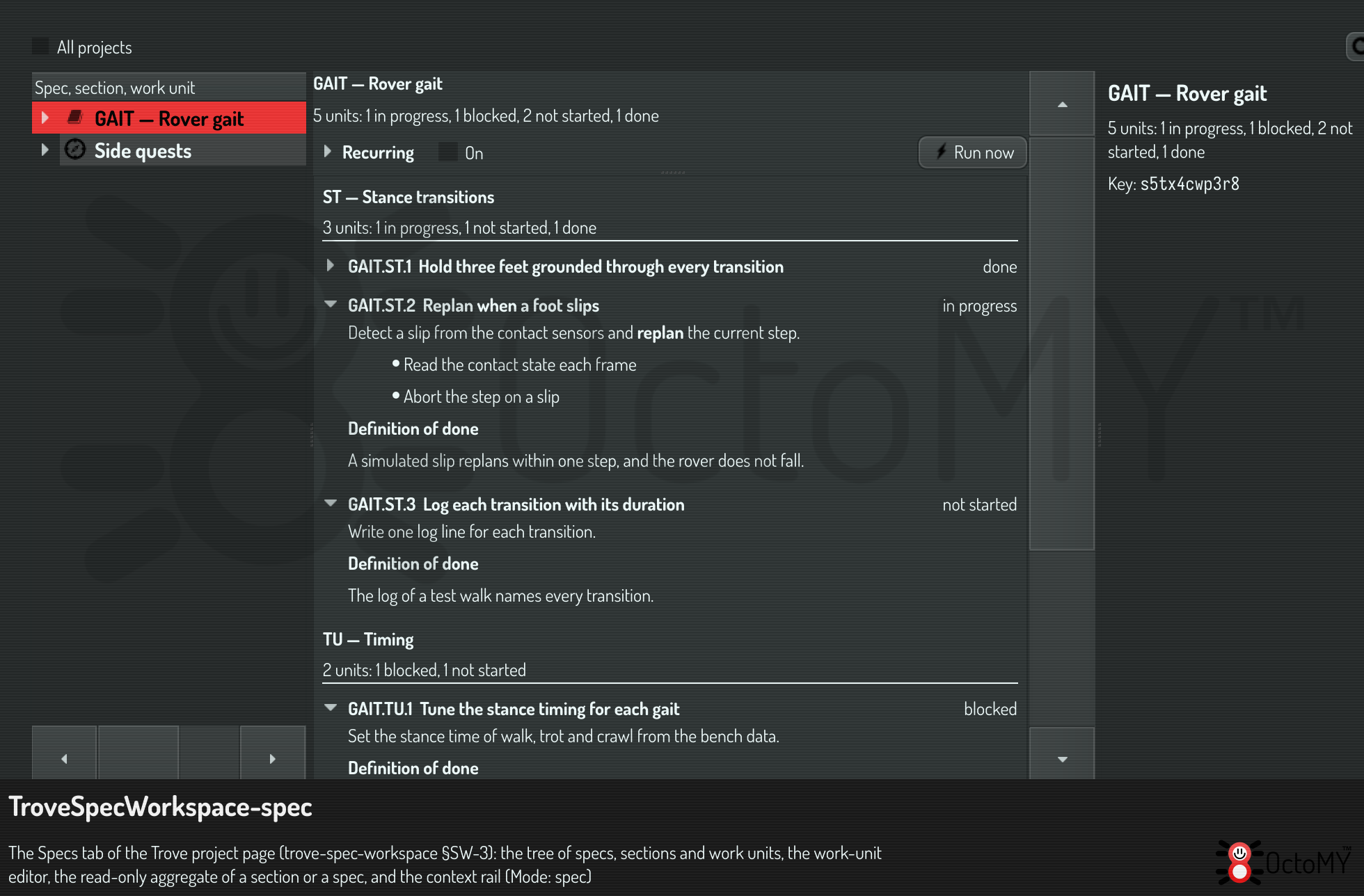
A spec and a section have no text of their own. Only work units do, so the list is read-only. Double-click a unit to open it in the editor.
Edit a work unit
Select a work unit to open the editor. It holds:
- the Title
- the Instruction, in a Markdown editor with a live preview
- the Definition of done
- the Status, the Owner of the claim, and the Lane for Run this
Change the text, then press Save or Ctrl+S. Press Revert to drop your
changes and show the stored unit again. If you select another unit with changes
on screen, the workspace saves them first.
The editor refuses an empty Definition of Done, exactly as the conversation does. The reason shows under the buttons, and your text stays on screen so you can complete it.
A change to the instruction or the Definition of Done of a finished unit makes it stale: its recorded evidence no longer counts, and it must be done again. The editor and the tree both mark a stale unit. See Run a plan.
Set the status
Choose a status in the Status box. It is written at once. Trove refuses done for a unit whose Definition of Done cites a standard that has no passing result, and tells you which standard is missing.
Run a unit in a lane
Set the Lane, then press Run this. This is the same as asking, in the conversation:
Run that unit in lane 2.
Trove claims the unit for the lane, writes its briefing into the lane's
worktree and starts a session. If you have unsaved changes, the workspace saves
them first, because the lane runs what the database holds. The unit then shows
in progress, owned by lane:2, and the message under the buttons names the
job that runs it.
A unit that belongs to another project does not run here. Open the project page of that project, or move the unit to this project in the conversation.
Read the context rail
For a work unit, the rail shows:
- whether its Definition of done is met, and if not, which standard failed, never ran, or waits for a Verify unit
- the units it depends on, with their status
- Blame: who last wrote the title, the instruction, the Definition of Done
and the status. An edit from the workspace shows as
operator - the History of the unit, newest change first
For a spec, a section or the side quests, the rail shows the count by status.
See and edit the files of a lane
The Files tab shows the files of the project. Choose a folder in the Folder box at the top:
- Checkout (read-only) is the project's own checkout. Trove made it, and it can delete it when you discard the project, so the tab does not let you change it.
- Each lane worktree has an entry, for example lane-1 (changed, 2 ahead). This is where a session's changes are, and you can edit them.
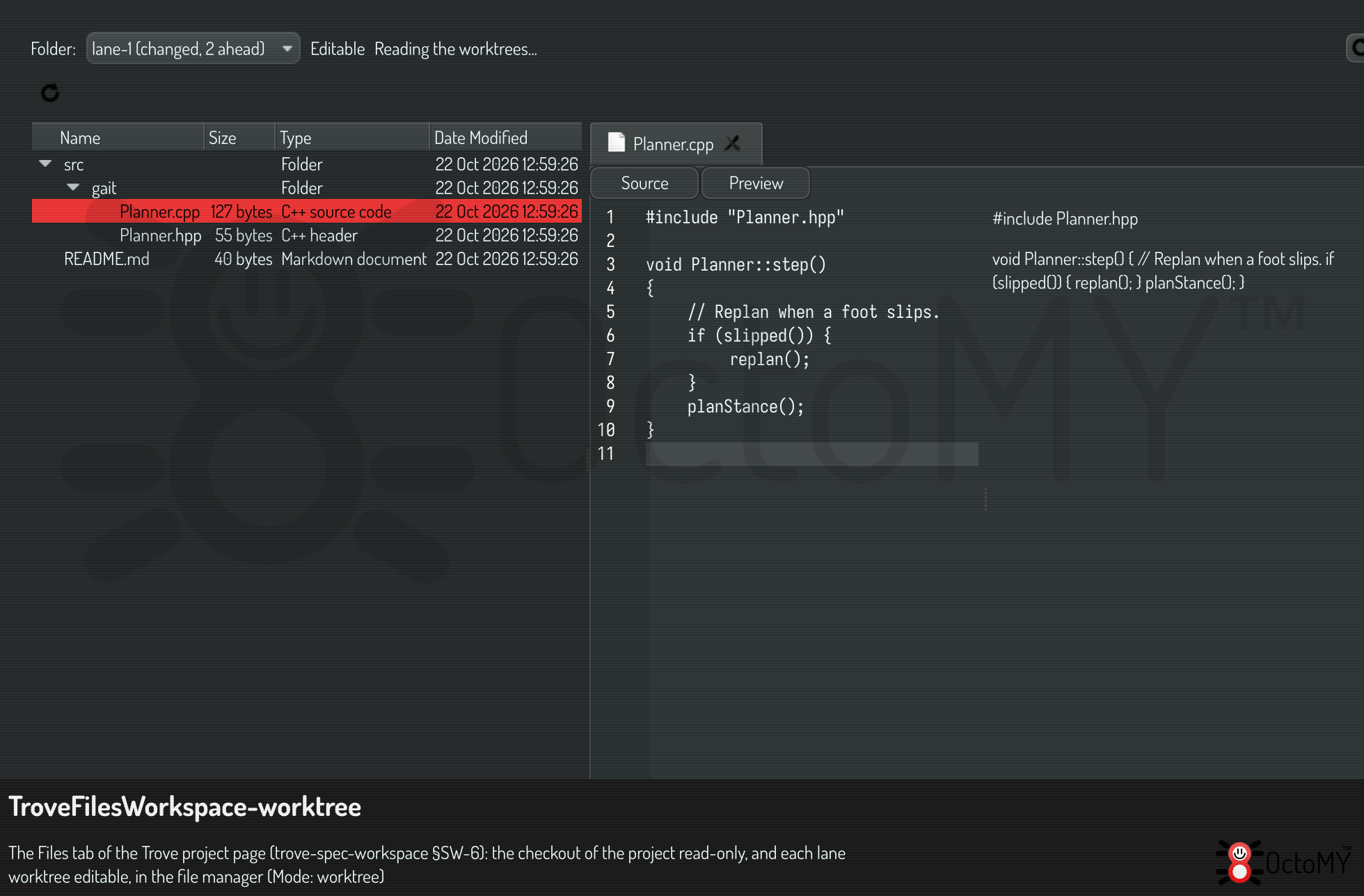
The label beside the box says Read-only or Editable. The entry of a worktree also tells you:
- on
<branch>: the branch, when its name differs from the worktree's name - changed: the worktree has changes that are not committed
Nahead: the branch has commits that the default branch does not have- held by
lane:1: a lane or a session holds the worktree's lease - folder missing: git still lists the worktree, but its folder is gone
Double-click a file to open it. In a lane worktree, a text or code file opens in
an editor that saves your changes as you type, and Ctrl+S saves at once. The
editor opens with its source pane only. Turn on its preview pane to see a
Markdown file rendered. The editor remembers that choice for every lane. An image, a video or sound file, a PDF file, a font or an archive
opens in a viewer.
In the checkout, every file opens in a viewer, and the tree does not copy, move, rename or delete anything:
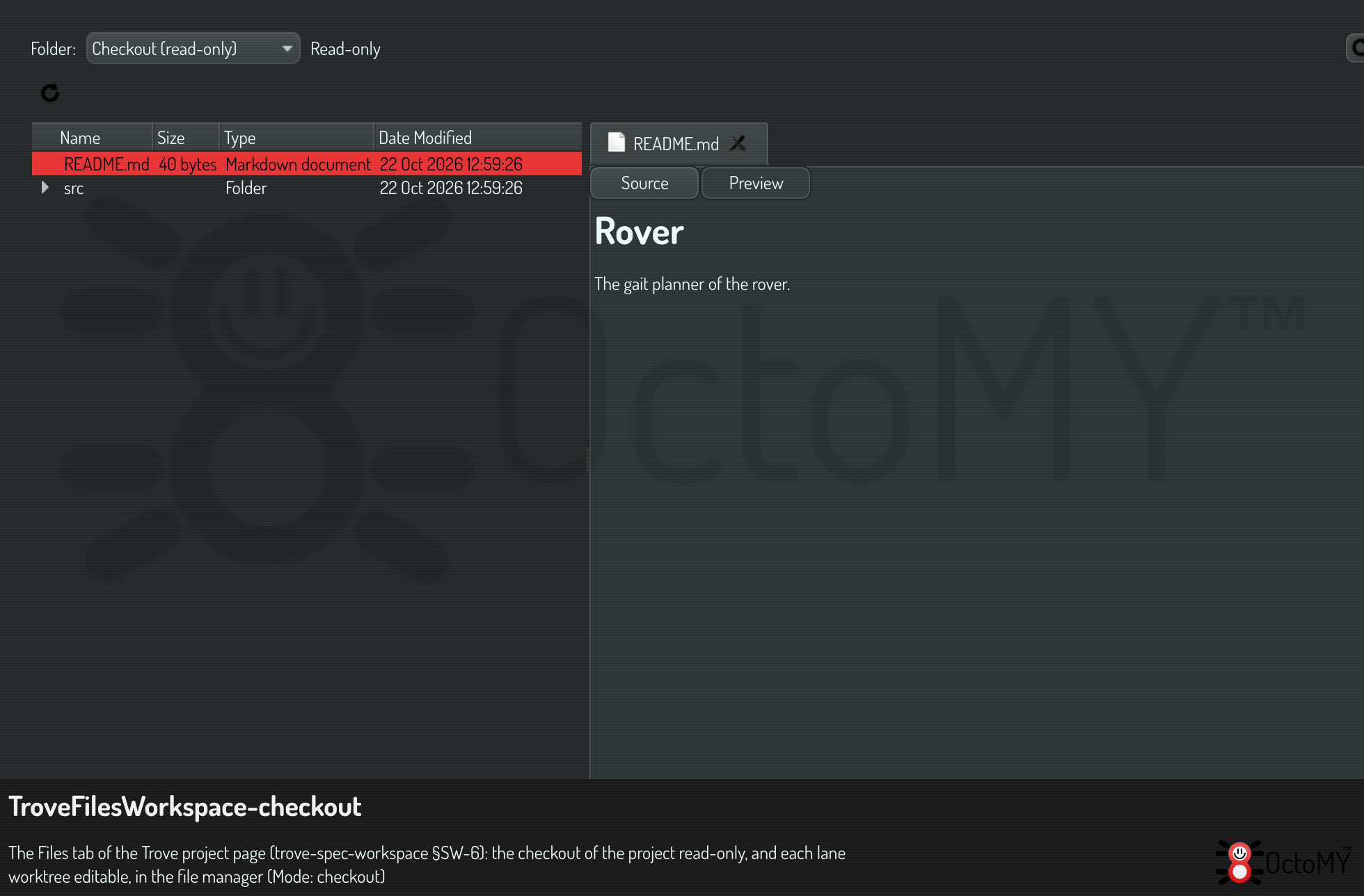
When you choose another folder, the tab saves and closes the files you have open. The tab reads the list of worktrees each time you open it. Press the reload button to read it again, for example after a lane has started.
A session that runs in a lane edits the same files that you see. Your change and the session's changes go into the same worktree, so make your edit while the lane does not run.
Ask about the selection in the chat
The Chat pane, on the right of the project page, is a conversation with OPAL about this project. It stays when you change the tab. It knows what you selected last: a spec, a section or a work unit in the Specs tab, or a file in the Files tab. To ask about a lane, choose Ask the chat about this lane in the menu of its card on the Lanes tab. The line above the chat says which, and every message you send carries it. So you can select a section and ask "what is still open here?" without naming it.
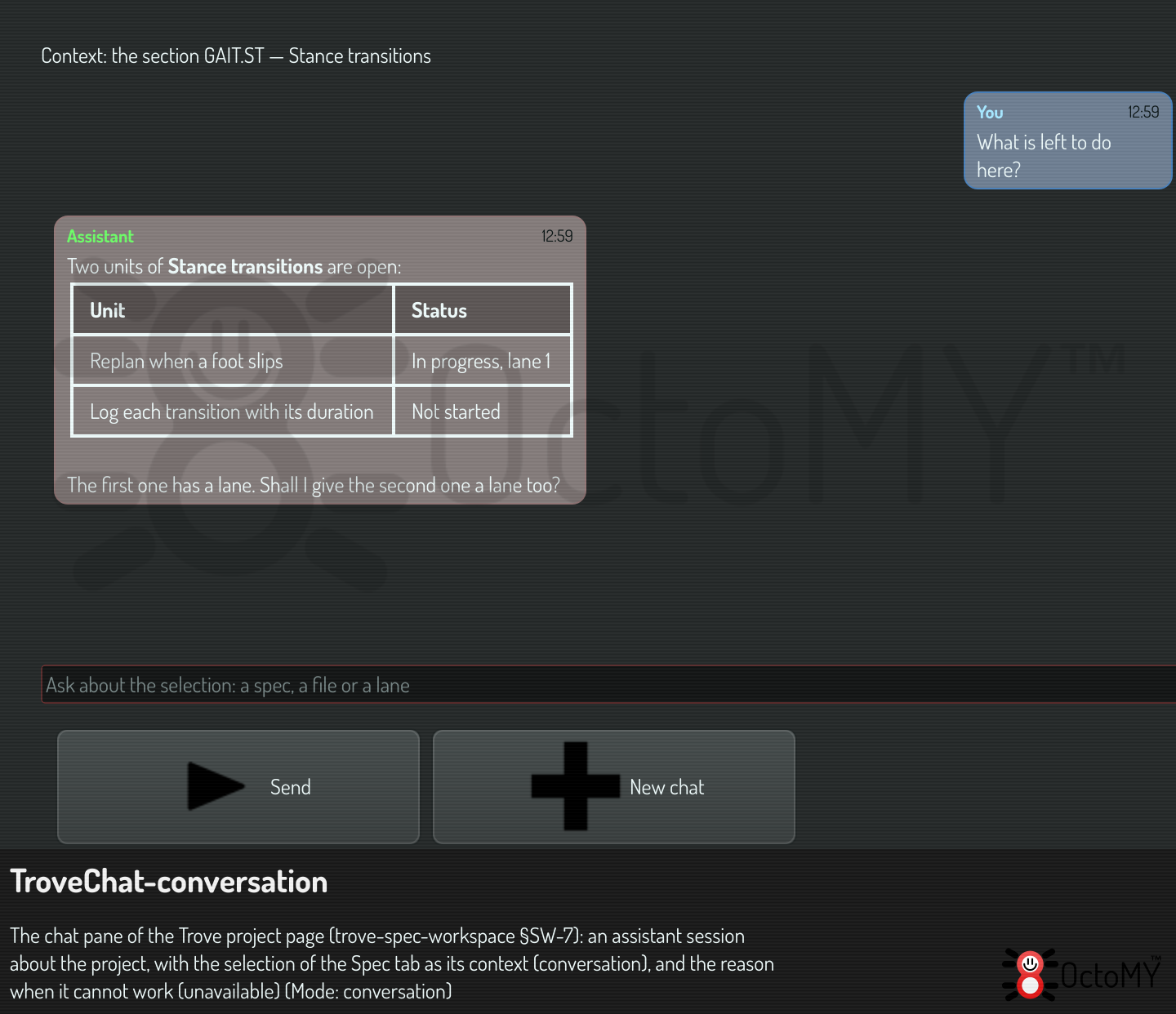
Type a message and press Enter, or click Send. OPAL answers the way it
does in the OPAL conversation: it can read and change the spec database through
the spec.* tasks, and it proposes a plan as a card with an Execute button.
A plan that needs a grant waits until you click Execute, and that click
approves the plan. A plan of granted tasks runs at once. The results go back to
OPAL, which answers again. Watch a request change the project
says which plans run at once, and how the project page shows each change.
The chat belongs to the project. When you open the project page again, it shows the same conversation. Click New chat to start a fresh one. Like every OPAL conversation, a Trove chat is kept for 24 hours after its last message.
The chat uses the model that OPAL uses by default. When you select another default model in the OPAL screen, the next message goes to that model, in the same conversation. The OPAL screen lists the OPAL conversations only: a Trove chat stays on its project page.
The Trove chat cannot open other screens. Use the OPAL conversation for that. A
task that confirms each call, as trove.dispatch, asks you with a card in the
chat.
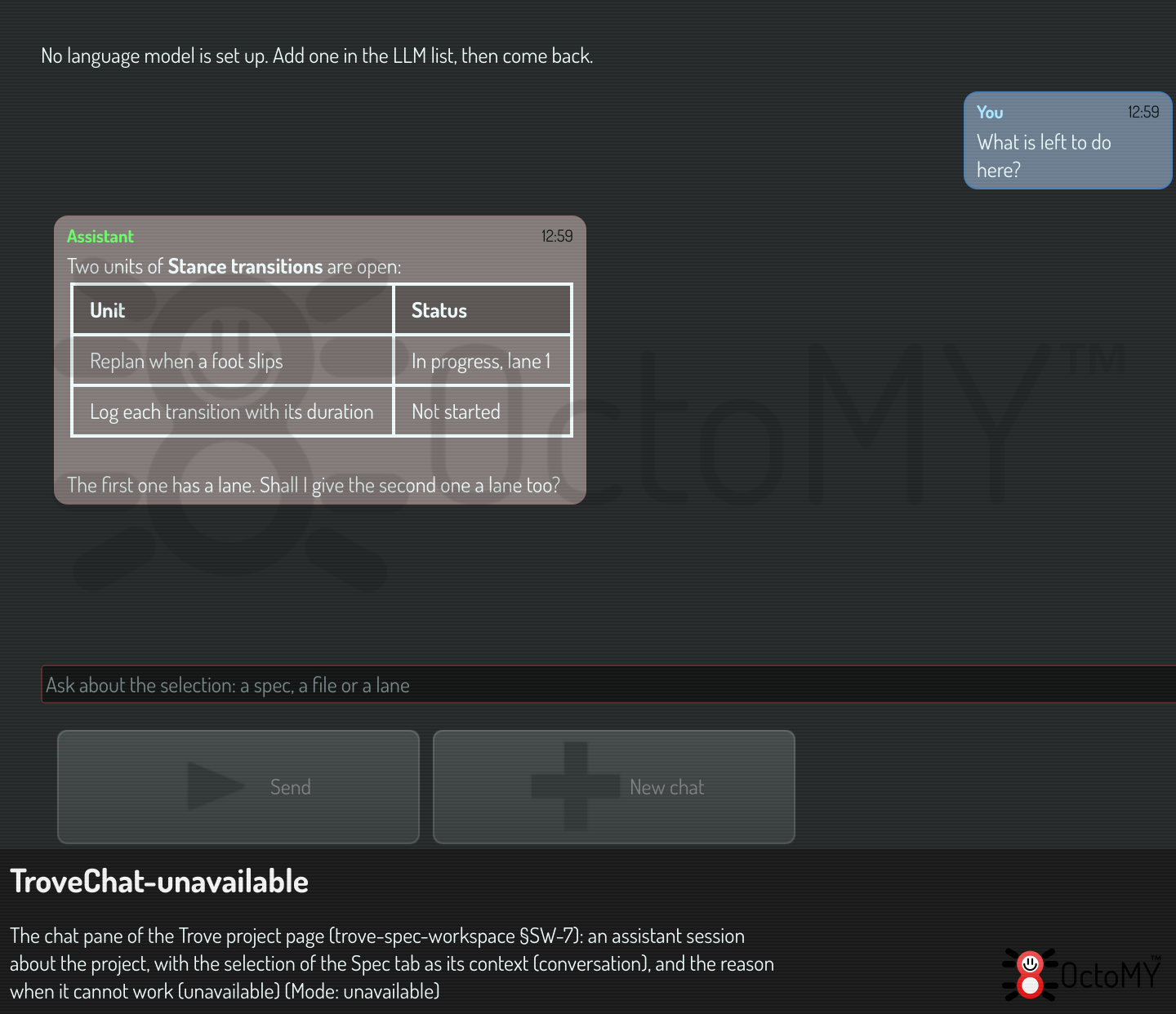
When no language model is set up, the chat says so and you cannot send. Add a model in the LLM list, then come back:
When the tab says it cannot work
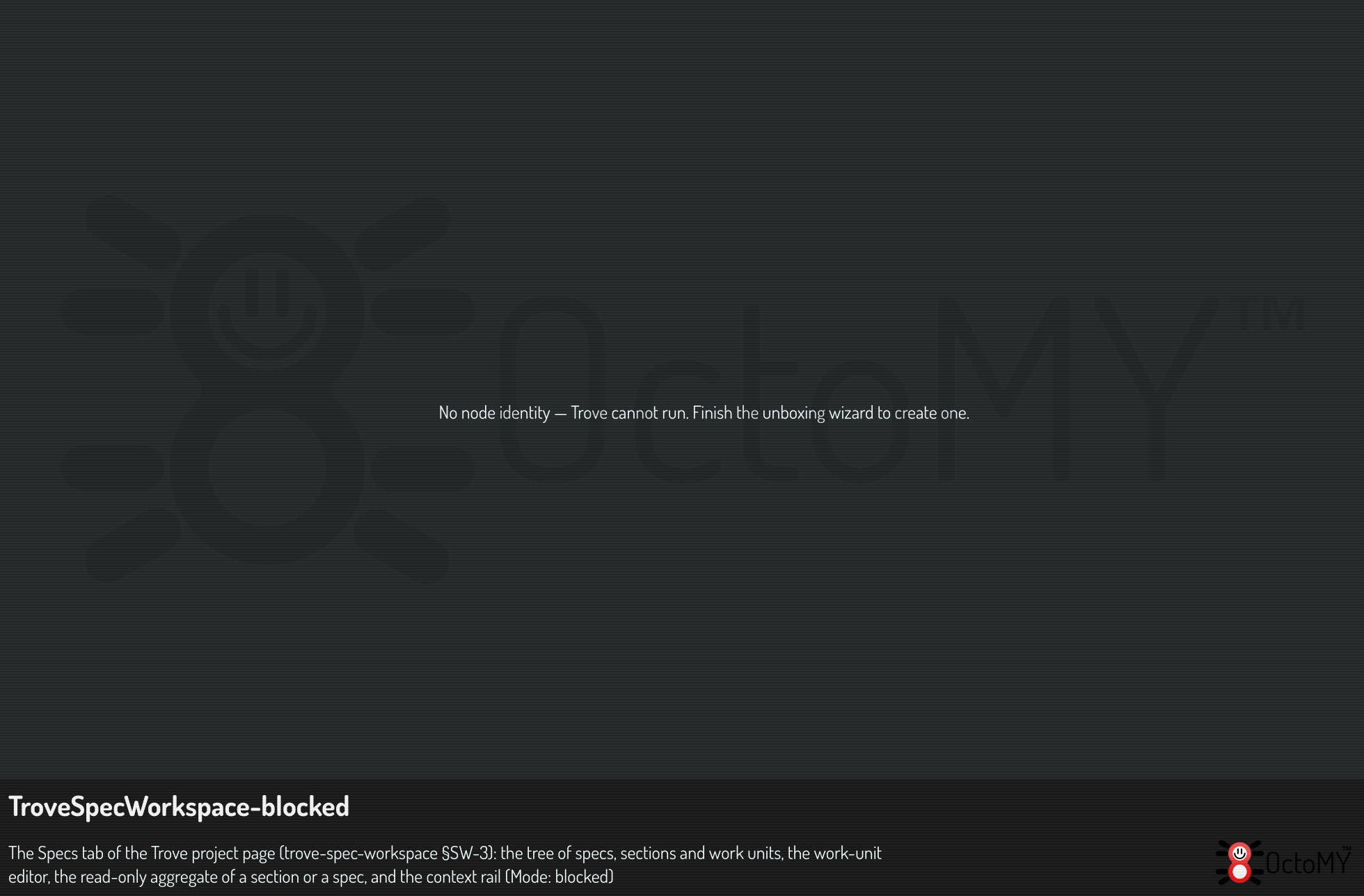
The spec database belongs to a sentient on a device. Without both, there is no database, and the tab says what is missing instead of showing empty panes:
- No sentient active: unlock your hive.
- No node identity: finish the unboxing wizard.
- The spec database is not open: the HUB opens it once the hive is unlocked and the node has its identity. If the message stays, restart the HUB.
An empty tree also says so. Create your first spec in the OPAL conversation, see Create a spec.
The Files tab gives the same message when Trove cannot run. It also says so when the project has no checkout yet, or when the checkout is not on disk. Set the target repository in the Settings tab.
Related
- Create a spec: author and refine specs by conversation.
- Run a plan: hand many units to lanes at once.
- Work a side quest: work that belongs to no spec.
- The spec database: why a spec is rows and not a file.