Find your way in Trove
Trove home, the project page and the lane page, and how to move between them
Trove has three levels: all projects, one project, and one lane of a project. Each level has one page. This page tells you how to open each page, how to go back up, and where each part of a project is.
The three levels
| Level | Page | Name on the page |
|---|---|---|
| All projects | Trove home | "Trove" |
| One project | The project page | The name of the project, with "(repository)" |
| One lane | The lane page | The name of the lane, with "(worktree)" |
A project is a git repository. Trove also keeps the specs, the settings, the queue and the sessions of the project.
A lane is a git
worktree of that repository, on the
branch lane-N. A lane also has a phase, the work unit that it works on, and
one session at a time.
The pages open top down. Trove home opens a project page, and a project page opens a lane page. No page opens another project.
Open Trove home
- Open the Apps menu of the HUB.
- Choose Trove.
Trove home has two tabs, Projects and Settings. The Projects tab shows a summary line, a card for each project, and the add card last.
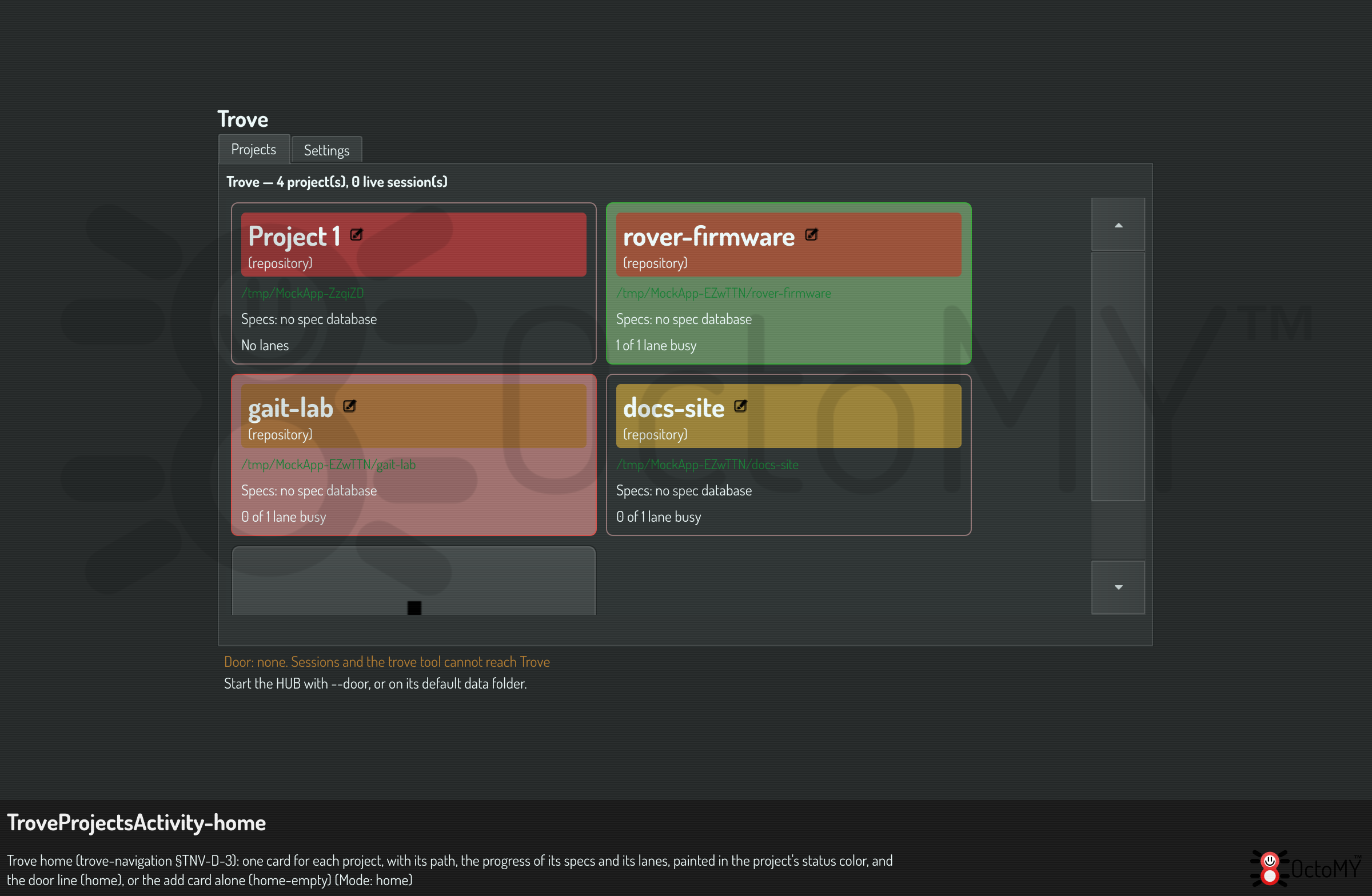
A project card shows:
- The name of the project, with "(repository)"
- The path of the checkout
- The color of the project
- The progress of its specs, for example "3 specs · 60 %"
- Its busy lanes and all its lanes, for example "2 of 3 lanes busy"
The door line is under the cards. It tells you which process serves the door of Trove on this computer. See Read the door line.
The Settings tab holds the Trove settings for all projects and the door permissions.
With no project, Trove home shows the add card and the line "Add the repository of a project to start".
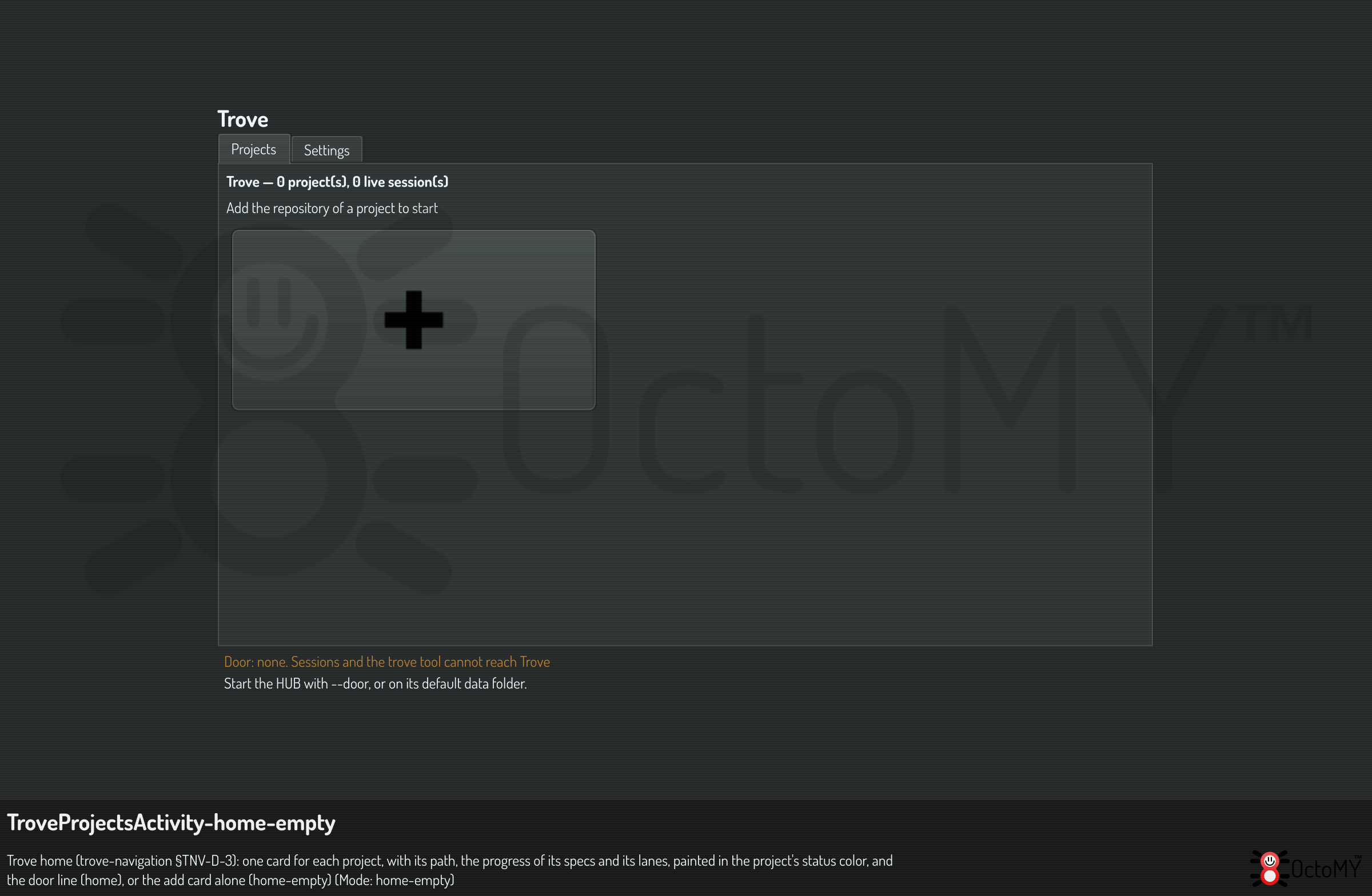
Add a project
- Click the add card on Trove home.
- Choose the source of the project, and push Create.
The steps are in Create a project.
Open a project
- Click the card of the project on Trove home.
The project page opens on the Lanes tab, so you see what goes on in the project first. A single click opens the page. A double click does nothing more.
Read the project page
The bar at the top of the page shows where you are, for example "Trove › rover (repository)". The line under the bar shows the path of the checkout and its branch.
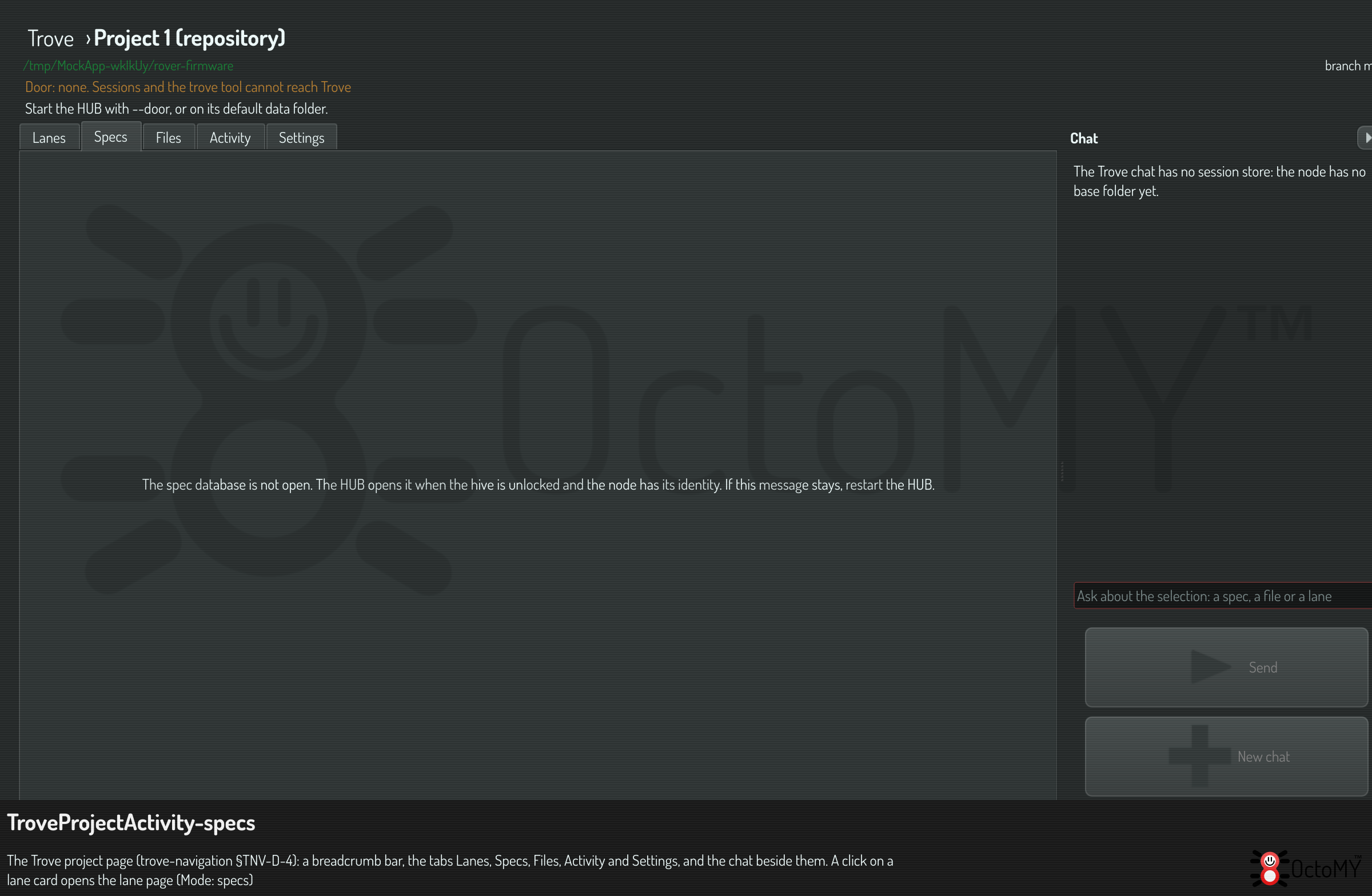
The page has five tabs, in this order:
| Tab | What it shows |
|---|---|
| Lanes | A card for each lane of the project, in each phase, and the add card |
| Specs | The tree of specs, sections and work units, and the editor of the selected item. See Edit specs in the workspace |
| Files | The checkout of the project, read-only, and the worktree of each lane |
| Activity | Each change of the project, newest last |
| Settings | The settings of the project |
The chat pane is at the right of the page, on every tab. Push the arrow at its top to collapse it to a strip. See Watch a request change the project.
When Trove cannot run, for example with no active sentient, a notice under the bar names the reason and the way out.
The project page shows the door line only when the door has a problem.
Open a lane
- Open the project page. Its Lanes tab is open.
- Click the card of the lane.
The lane page opens.
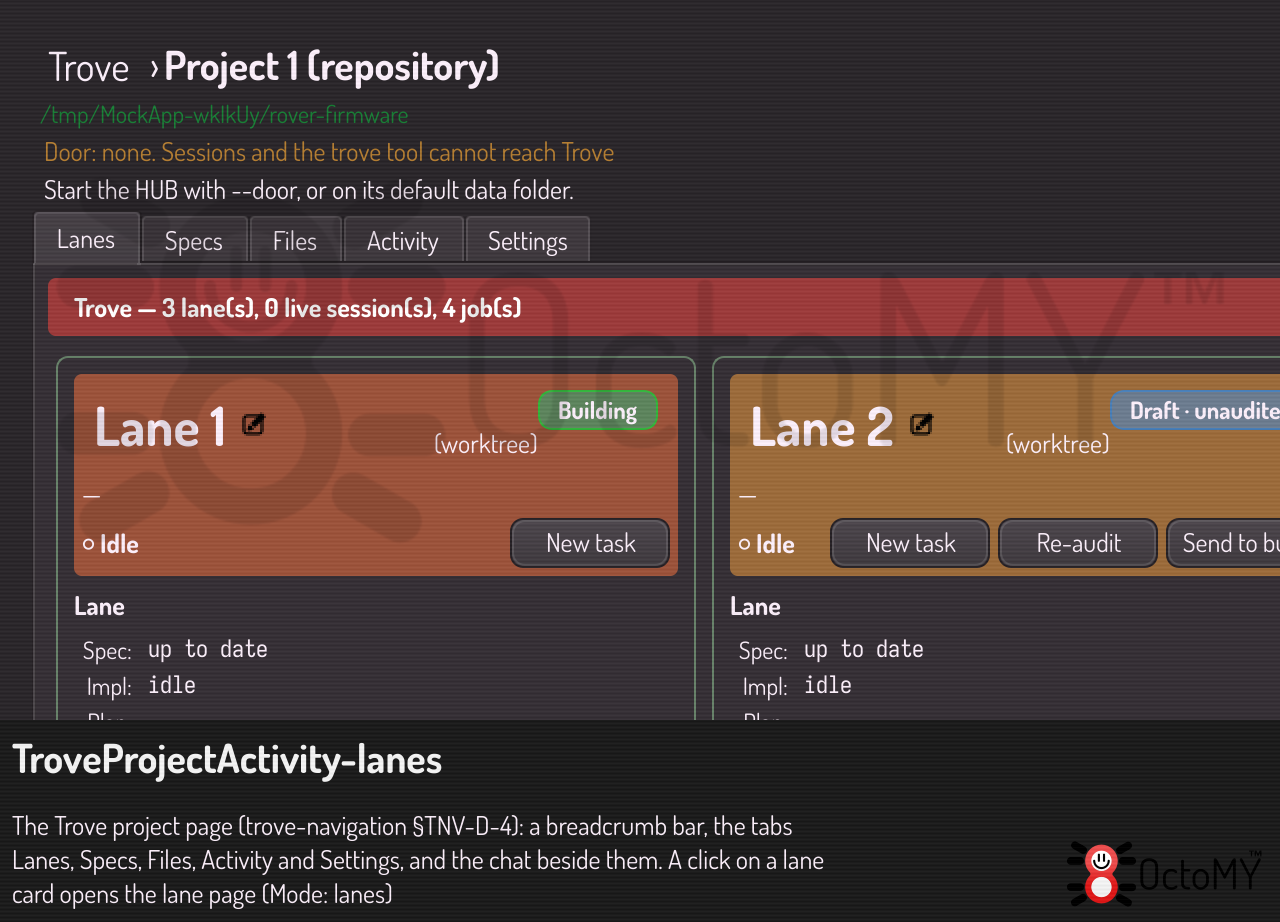
A lane card shows:
- "Lane N (worktree)", or the name that you gave the lane
- The phase of the lane and its branch
- A link to the work unit of the lane, with its spec and its section. A long link is shortened in the middle. Hold the pointer on it to read "Working on:" and the whole text.
- The state of the session of the lane
- The buttons of the lane
All lane cards have the height of the tallest card.
Click the link to the work unit to open the Specs tab at that work unit. Click a button of the card to do its act. A button opens no page.
To make a new lane, click the add card. Trove makes the next lane and opens its lane page.
Read the lane page
The bar at the top shows the full path, for example "Trove › rover (repository) › Lane 1 (worktree)". The line under it shows the branch of the lane and the path of its worktree.
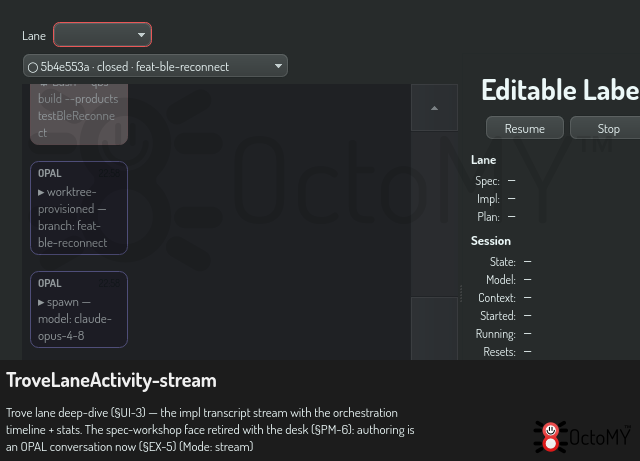
The lane page holds:
- The link to the work unit, with the spec and the section of the lane, as on the lane card. Click it to open the Specs tab of the project page at that unit.
- The session switcher, with the sessions of this lane only.
- The stream of the selected session.
- The message row, which sends a message to the session of this lane. The chat of the project is not on this page.
- Adopt a terminal session. See Adopt a terminal session.
- The lane card, with Stop, Sync and Finalize.
Use these keys to go to another lane of the same project:
| Key | Lane |
|---|---|
Ctrl+PgDown |
The next lane |
Ctrl+PgUp |
The previous lane |
Ctrl+Home |
The first lane |
Ctrl+End |
The last lane |
Push F1 to see each shortcut.
Go back up
- To go up one level, push Back.
- To go up to a level, click its name in the bar at the top of the page.
The last name in the bar is the page itself, and a click on it does nothing.
Use the menu of a card
- Right-click a card.
- Choose an act in the menu.
| Card | Acts in the menu |
|---|---|
| Project card, on Trove home | Rename, Color, Discard |
| Lane card, on the Lanes tab | Ask the chat about this lane, Rename, Color, Discard |
Rename edits the name in place. Discard asks you before it removes anything. Ask the chat about this lane makes the lane the subject of the next message of the chat.
Read the Activity tab
The Activity tab lists each change of the project, newest last. A change is a write to the spec database, a session of a lane, or a changed file of a worktree. The list holds the changes since the project page opened.
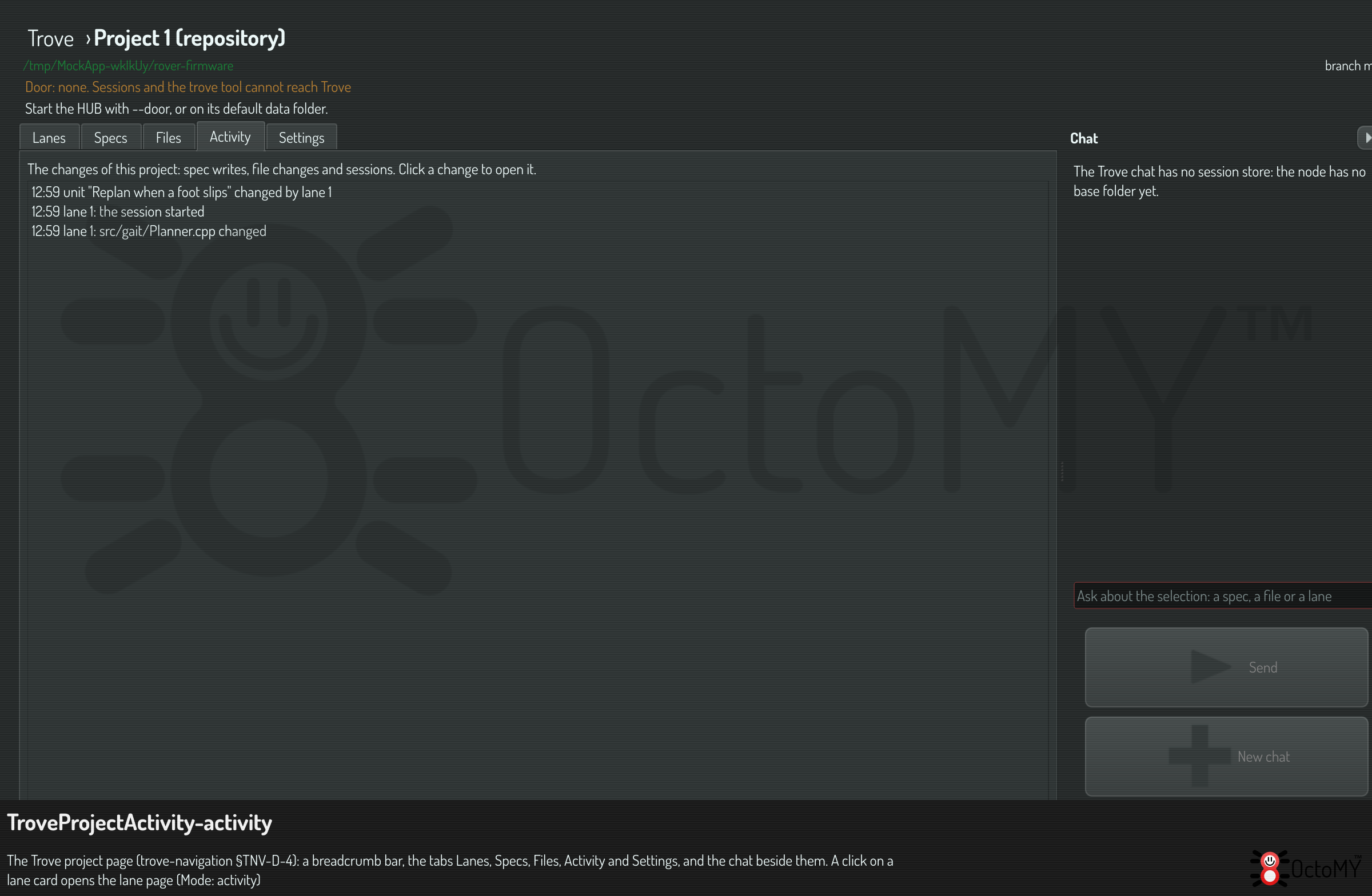
Click a line to open its subject:
| Line | A click opens |
|---|---|
| A spec write | The Specs tab, at the spec, the section or the work unit |
| A file change | The Files tab, at the file in its worktree |
| A session line | The lane page of its lane |
Follow a dispatch from the chat
When the chat starts the work of a unit in a lane, the page does not change. The chat shows a line, for example "Lane 1 started", with a link.
- Click the link to open the lane page of that lane.
The card of the lane on the Lanes tab shows the new state too.
Save or copy a conversation
Each chat stream has the same menu: the chat of the project page, the stream of the lane page and the OPAL chat.
- Right-click the stream, on a message or below the last one.
- Choose an item of the conversation part of the menu.
| Item | What it does |
|---|---|
| Copy the conversation | Puts the text of every message on the clipboard |
| Copy the conversation as Markdown | Puts the messages on the clipboard as Markdown |
| Save the conversation as text or as PDF | Writes a file in the octomy-chats folder of your Desktop, and puts its path on the clipboard |
| Open as text or as PDF in the system viewer | Writes the file, puts its path on the clipboard, and opens it |
| Show the folder of saved conversations | Opens the folder in the file manager |
A stream with no message disables these items. The OPAL chat writes to the
octomy-opal-chats folder, as its Export menu does.
Open a page from OPAL
The OPAL task trove.open opens Trove home, a project page at a tab, or a lane
page. It opens the pages above the target too, so Back goes up one level.
See the Spec database OPAL command reference.
What lives where
The data of Trove is in the data folder of the node, in git, and in each worktree.
| Data | Storage | Where |
|---|---|---|
| The projects and their settings | JSON | <data folder>/trove/projects.json |
| The queue, the sessions and the prompts of a project | Files | <data folder>/trove/projects/<project id>/ |
| Specs, sections, work units, plans and recurring specs, for all projects | SQLite, one database for each sentient and device | <data folder>/spec-<sentient>-<node>.db |
| Sessions and their events | SQLite | <data folder>/sessions.db |
| The checkout of a project | Git | The folder that the project points at |
| The worktree of a lane | A git worktree, on the branch lane-N |
See below |
| The state of a lane | JSON in the worktree | lane-N/.trove/lane.json |
The worktree of a lane in a local repository is in
<checkout>/../.trove-worktrees/<project id>/lane-N.
The worktree of a lane in a cloned project is in
<data folder>/trove/checkouts/<project id>-worktrees.
The Worktree root setting of a project changes the place of its worktrees.
Related
- Edit specs in the workspace: the Specs and Files tabs.
- Watch a request change the project: the chat pane and the door line.
- Trove: autonomous coding in lanes: projects, lanes and sessions.
- Trove parts: how Trove makes a lane from a worktree, a session, its builds and its work units.