Adopt a terminal session
Move a Claude Code session from a terminal into the Hub, follow it in a lane, and hand it back
You started Claude Code in a terminal, worked with it for a while, and now want the Hub to take the session over: follow it in a lane's stream, send it more work, and keep its whole history in one place. Adopting does that. When you want the session back in the terminal, you export it.
The Hub keeps every session in its session store. Adopting reads the session's Claude Code transcript once and records each prompt, answer, tool call and usage report there. From then on, the store is the session's history, and the next message you send resumes the same Claude Code conversation in its own folder.
Close the terminal first
Quit claude in the terminal before you adopt the session. If two copies of
one Claude Code session run at the same time, both write into the same
transcript and their messages interleave. The Hub has no way to see a
terminal, so it asks you to confirm that the terminal is closed, and it does
not adopt the session until you do.
Adopt from the lane page
- Open the lane page of the lane whose worktree the session ran in. See Find your way in Trove.
- Click Adopt a terminal session… above the stream.
- Check the folder. It starts as the lane's worktree; type another folder and press Enter to list the sessions that ran there.
- Pick a session. The list shows each session's first prompt, its number of turns, the time of its last change and the start of its id, newest first.
- Tick The terminal that ran this session is closed.
- Click Adopt.
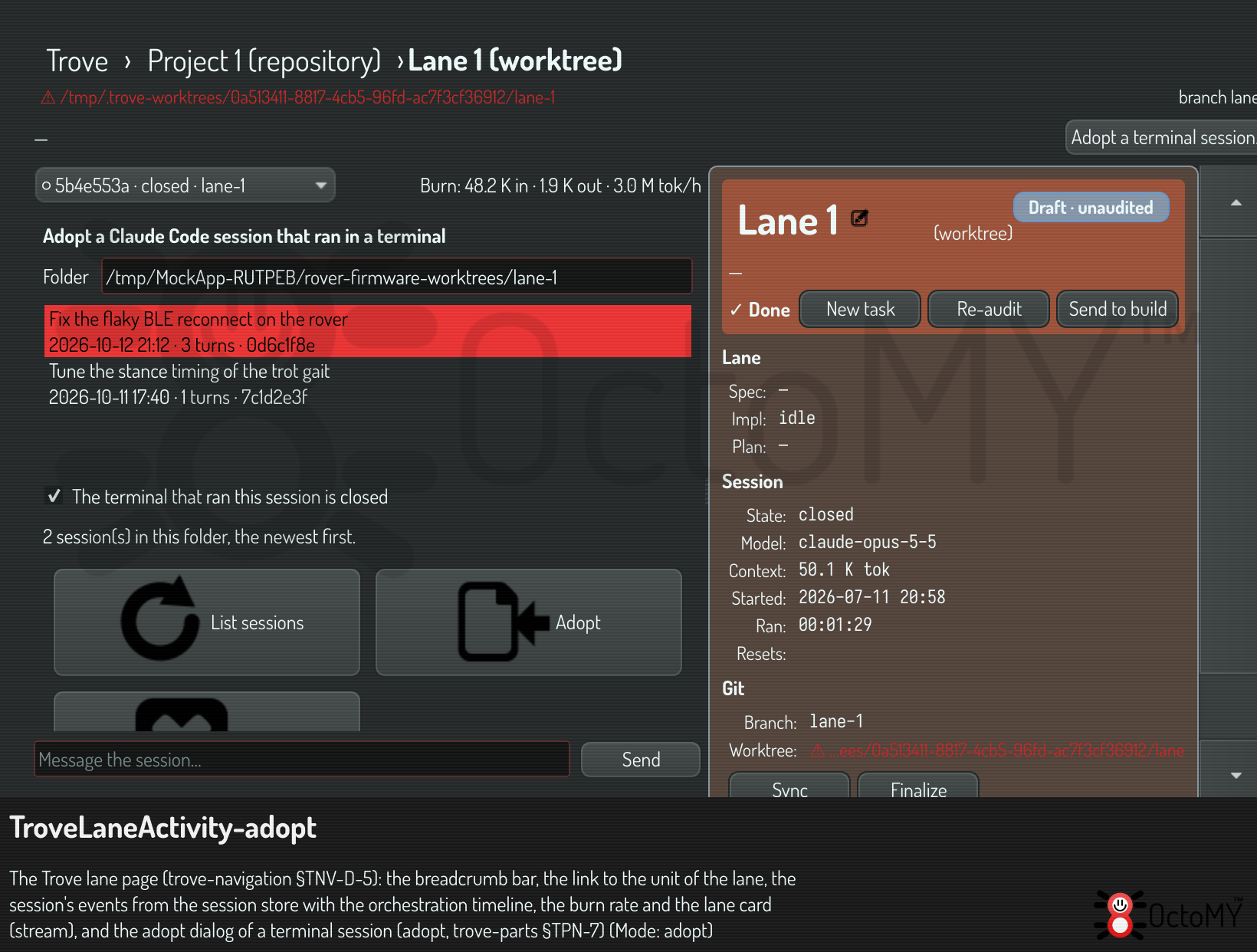
The stream switches to the adopted session and shows its turns. The events that came from the transcript are marked as imported.
Adopt from a terminal
With the trove tool, in the folder where the
session ran:
trove session adopt folder="$PWD" confirm_closed=1
If more than one Claude Code session ran in that folder, the answer lists
them as candidates, newest first, and adopts nothing. Pick one by its id:
trove session adopt folder="$PWD" provider_session=0d6c1f8e-7a52-4c39-9f0b-5b1e2a9c4d17 confirm_closed=1
You can also name the session's transcript file with transcript=. The answer
gives the new session's id, its folder, its Claude Code id as
provider_session, and the number of turns it brought. When the folder is a
git worktree, worktree names it.
Adopting asks for your confirmation every time, because only you know that the terminal is closed.
Follow and continue the session
The lane page follows the session as it runs: each new event appears once, as the store records it. The header above the stream shows the session's token use and its rate per hour, and, when a usage limit stopped the session, the time left until the limit resets.
Send the next message to the session from a terminal or from a session of your own:
trove session send id=<id> text="Run the reconnect tests again"
trove session follow <id>
The first message after the adopt resumes the Claude Code conversation in the session's folder.
Hand the session back to a terminal
trove session export id=<id>
The session stops in the Hub and closes there, and the answer gives the command that resumes it in a terminal:
cd /home/me/rover-firmware-worktrees/lane-1 && claude --resume 0d6c1f8e-7a52-4c39-9f0b-5b1e2a9c4d17
Run it, and Claude Code shows the whole conversation in its own view, including the turns that ran in the Hub. To bring the session back once more, close the terminal and adopt it again.
If something goes wrong
- "adopt needs confirm_closed=true": close the terminal, then repeat the
adopt with
confirm_closed=1, or tick the check in the dialog. - "No Claude Code session ran in …": Claude Code files a session under the exact folder where it started. Give that folder, or the transcript file.
- "the session … runs here as session …": the Hub already runs that Claude Code session. Export or close it before you adopt it again.
- The session is signed out: the stream shows an error that asks you to
sign in. Run
claudein a terminal, sign in with/login, and send the session its next message.
Related
- Use Trove from a terminal — the
trovetool and the door it calls. - Spec database OPAL command reference
—
session.adoptandsession.export, with every argument.