Mesh and Tet Volume Items
The tones, the edges, the fields and colormaps, and two items in one place
Mesh and Tet Volume Items
Status: Complete Last Updated: 2026-10-06
This page tells how the viewport colors and lights a tri mesh item and a tet volume item. It also tells what the viewport does where two items cover the same surface.
The two tones
Each item type has its own tone. A tone comes from the primary color of the palette, which is the highlight color of the edition you run.
| Type | Tone |
|---|---|
| Tri mesh | The primary, turned by half a turn of hue |
| Tet volume | The primary, turned by three quarters of a turn of hue |
The turn happens in CIE LCh, so the lightness that you see does not change with the hue. Each tone also gets its own lightness, between L* 35 and 80. The palette chooses the two lightness values that keep the primary and the two tones far apart. The test is a CIE76 difference of at least 25 between each pair, in normal vision and under protanopia, deuteranopia and tritanopia. Each edition's seed passes it.
The tones are not stored. When the palette changes, the tones change with it, in the viewport and in the scene tree.
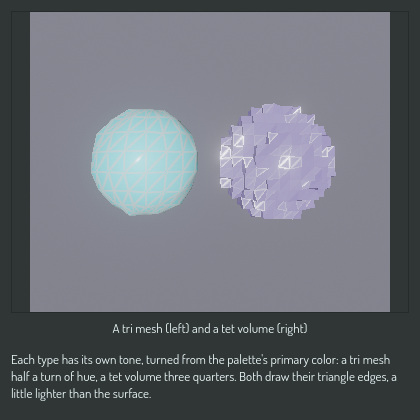
What colors an item
The first rule that applies wins:
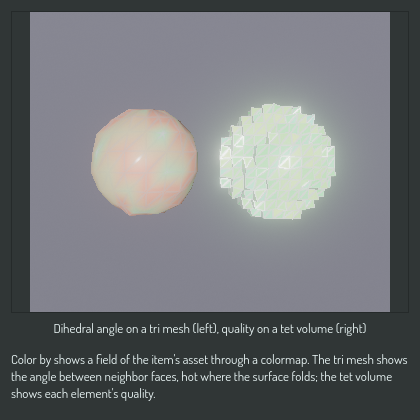
- A field. The item shows a scalar field of its asset through a colormap. See Fields.
- A material. If you give the item a material that differs from the default, its albedo colors the item.
- The tone of the item type. The default gray material never shows on a mesh or a tet volume.
Edges and light
Both types draw the edges of their triangles. A tet volume draws the triangles of its boundary and of its cut plane section. The edge color is the surface color, lighter by 15 in CIELAB L*. Both types use one shading function, so a tet volume and a mesh baked from it look the same.
| Part | Diffuse weight | Roughness |
|---|---|---|
| Surface | 1.0 | 0.6 |
| Edge | 0.6 | 0.25 |
The edge is less diffuse and smoother than the surface, so it looks shinier.
A tri mesh shades smooth across edges under 45 degrees. A tet volume shades
flat. A mesh item can store its own angle as creaseAngle in its type data.
A boundary bake of a tet volume stores 0, so it shades flat and looks the
same as the volume.
A highlight does not change these colors. A hovered or selected mesh or tet volume shows its outline only.
Fields
A field is a named value for each element or each vertex of an item's asset. An element field colors each triangle flat. A vertex field blends the color across each triangle. A vector field shows as its length.
| Type | Fields every item has | Range |
|---|---|---|
| Tet volume | quality: the shortest edge of a tet over its longest |
0 to 1 |
| Tet volume | volume: the volume of each tet |
Its minimum to its maximum |
| Tet volume | depth: the number of tet layers from the boundary |
Its minimum to its maximum |
| Tri mesh | dihedral: the largest angle between the two faces of an edge, at each vertex, in degrees |
0 to 30, in the heat colormap |
The other fields come from the asset file, for example the result of a simulation. A field with one value only shows the middle of its colormap.
To color a tet volume, use the Coloring control of its row. To color
either type, use the OPAL task construct.passenger.set_color. The task also takes a colormap and a
range of your choice. A new field resets a range that you set for the old
field.
Colormaps
A colormap is a JSON file in src/libs/libconstruct/construct/colormaps/.
The file name is the colormap's id.
| Id | Colors |
|---|---|
blue-green-red |
The default: blue, cyan, green, yellow, red |
heat |
Blue, green, red, as the Mesh Lab heatmap |
To add a colormap, add a file. No code changes. The build ships every file in the folder.
{
	"name": "Blue, green, red",
	"space": "linear",
	"stops": [
		{ "at": 0.0, "color": [0.1425, 0.1425, 0.95] },
		{ "at": 1.0, "color": [0.95, 0.1425, 0.1425] }
	]
}
atis a position from 0 to 1. Between two stops the color blends in a straight line.spaceislinearorsrgb. It tells how to read thecolorvalues. The viewport keeps linear values.- A colormap needs at least two stops.
Two items in one place
Where two items cover the same surface, each pass moves its depth toward the camera by a small amount from a key. The key comes from the item. This gives three modes:
| Mode | Where | What you see |
|---|---|---|
Pattern |
The editor viewport | A checker of 8-pixel squares, one item in each square. A hovered or selected item wins every square |
FixedOrder |
Rendered images, videos and thumbnails | One stable winner by item type, the SDF first, with no pattern |
Off |
Diagnostics | The surfaces fight, pixel by pixel |
The move is under a pixel, and a pick takes it back out, so a pick returns the true surface point. For how this looks in the viewport, see Two items in one place.