Construct interface guide
Panel management, settings, and developer tools
Last Updated: 2026-10-22
This guide covers the Construct CAD interface, including panel management, settings, and developer tools.
Main Interface
The Construct interface consists of:
- Left Panel - Scene tree and parametric view tabs
- Center - 3D viewport with real-time SDF rendering
- Right Panel - Property editors for selected items
- Toolbar - Panel toggles, file operations, and view options
Panel Management
Toggle Buttons
Use the toolbar toggle buttons to show/hide panels:
| Button | Panel | Default State |
|---|---|---|
| Scene | Left panel (Layers/Parametric tabs) | Visible |
| Shader | Shader preview panel | Hidden |
| Materials | Material editor window | Hidden |
| Config | Configuration panel | Hidden |
Panel visibility is saved automatically and restored on next launch. The material editor is a window of its own, not a panel. It also keeps its size and its place on the screen.
The FPS counter
The toolbar's frame-rate readout counts rendered frames — frames whose pixels actually changed. When nothing in the scene changes, the viewport deliberately stops re-rendering and the counter shows idle; that is the editor saving your GPU, not a stall. Hover the counter to see both rates: the rendered rate (what your eye perceives as motion) and the delivered rate (how often the screen is refreshed with a frame, including re-shows of an unchanged image). The two can differ legitimately — a static scene delivers at full speed while rendering nothing new.
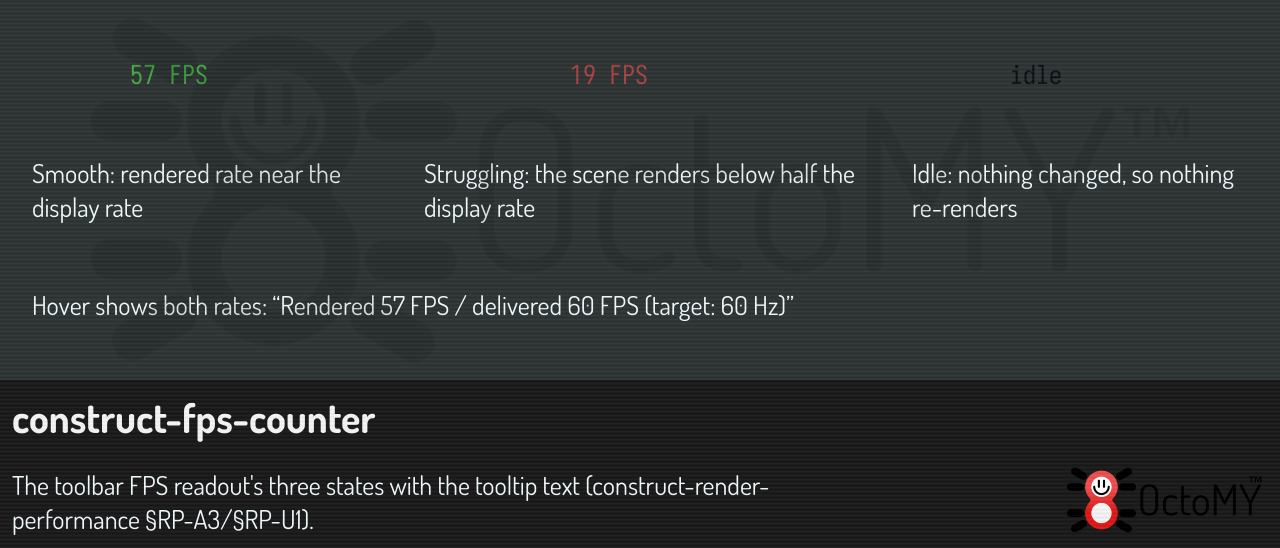
The color grades against your display's refresh rate: green near it, yellow at half, red below.
There is no properties panel. Everything is edited where it lives: a scene item on its own row in the scene tree, and a render layer on its row in the Layers tab (see below).
Render layers
Render layers and post-effects are a debug surface. They are not scene content — they do not live in your document, are not saved with it, and most work never needs them. They are listed in the Layers tab of the left panel, alongside the scene tree.
Selecting a layer there opens its properties directly underneath: its name, whether it is Visible, and whether it is Enabled. Selecting a post-effect shows its name and its type.
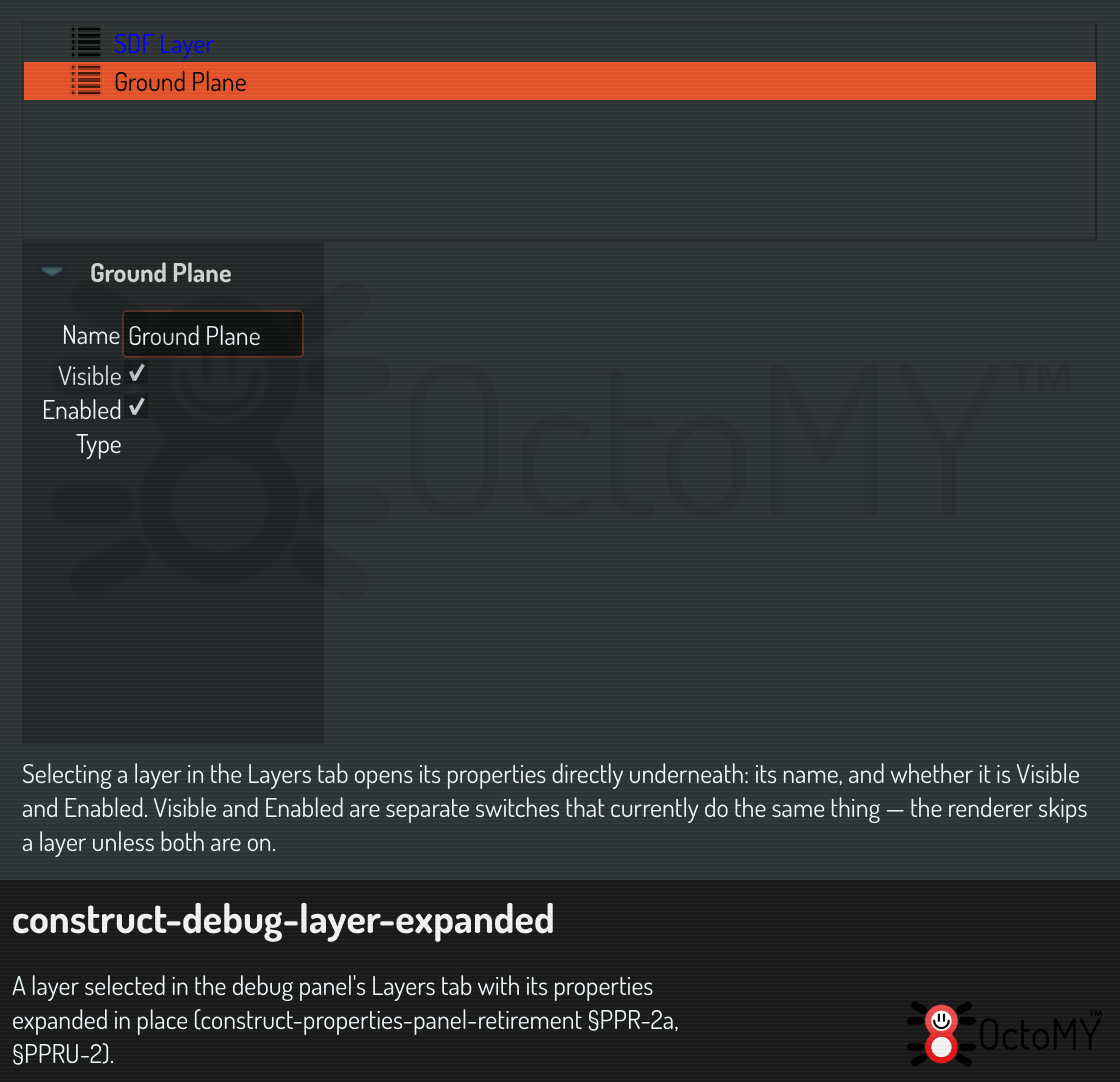
Visible and Enabled are separate switches that currently do the same thing. The renderer skips a layer unless both are on, and nothing distinguishes them anywhere else — so turning either one off has exactly the same effect. They are kept apart because they are stored apart, not because they mean different things today.
Resizing Panels
Drag the splitter bars between panels to resize. Panel widths are saved automatically.
Shader Preview Panel
A developer tool for viewing the generated GLSL shader code.
Features
| Feature | Description |
|---|---|
| Live updates | Shader code refreshes when the scene changes |
| Syntax highlighting | GLSL keywords and types are color-coded |
| Copy | Copy shader code to clipboard |
| Copy All | Copy shader code + scene YAML for debugging |
Usage
- Click the Shader toggle button to show the panel
- The generated fragment shader is displayed
- Use Copy to share shader code
- Use Copy All for complete debug information
Settings Persistence
Construct automatically saves and restores:
| Setting | Description |
|---|---|
| Panel visibility | Which panels are shown/hidden |
| Panel widths | Size of each panel |
| Window geometry | Window size and position |
| Splitter state | Panel arrangement |
Settings are stored in the settings store of the platform, under the same organization and application names as the data directory:
- Linux: a
.conffile under~/.config/ - Windows: the registry under
HKEY_CURRENT_USER\Software\
Material Editor
Open the material editor with:
- the material editor button on the toolbar, or
- a double-click on the material sphere of an item in the scene tree. The editor then opens on the values of that item: a change sets a value of this item only, and Reset values goes back to the material's defaults. Edit material opens the material itself. See The values of one item.
The material editor is a window of its own, as the definition picker and the definition editor are. Click the toolbar button again, or click the window's close button, to close it. The window opens where you left it, at the size you left it.
Editor Layout
- A wide window: the material list on the left, the preview sphere and the PBR controls on the right.
- A tall window: the preview sphere and the PBR controls on top, the material list below them. The list takes the height that is left.
The preview
The preview is live. It is the same renderer as the scene viewport. It shows a sphere in the material on a floor in front of a wall, in the scene's default look. A change to a property shows at once. The first view looks at the sphere straight from the front, as every material sphere does (see The material sphere). Drag in the preview to turn the camera. Double-click it, or click its reset button, to go back to the first view.
The first time the renderer prepares its shaders, this can take some seconds. During that time the preview shows a painted sphere in the material's colors, a turning spinner and the words "Building the preview…". You can continue to edit the material.
Built-in materials
A built-in material is locked: its controls are disabled. You can change a built-in material in two ways:
- Click Duplicate and edit the copy. This is the usual way.
- Check Edit built-in. The controls become available, and a change goes into a library copy that takes the place of the built-in material. The check changes no value.
The lock is about the material. The values of one item take changes for a built-in material too.
Operations
A change applies a moment after your last key or drag. There is nothing to save, and Undo takes a change back.
| Button | Action |
|---|---|
| New material | Create a material that starts as a copy of the default material |
| Duplicate | Make a copy that you can edit, and open it (use for built-ins) |
| Delete | Remove a material of your own |
Make an editable copy
- Open the editor with its toolbar button, and click the material in the list.
- Click Duplicate. The copy goes into the library at once, and the editor opens it.
- Change the copy's properties. Each change applies at once.
Definition editor
The definition editor edits one definition record. The left side has four tabs over the record's text: Shader, Blend (for an operator that blends), Preview and Source. The right side has the preview and the sections Validation, Metadata, Field, Parameters, Preview values and Field probe. The header of the Validation section shows the result as a badge: OK, a count of warnings, or a count of errors. The section opens on a problem and closes when it is fixed. The task-by-task guide is Edit an SDF definition.
The 3D preview
The preview is live. It is the same renderer as the scene viewport, showing one instance of the definition. It has the scene's default look: the default background, the default lights and the default material, with the default rendering options. The thumbnails have the same look. If you change the rendering options of a scene, for example its background or its lighting, the preview and the thumbnails keep the default look. The Things finder shows the same preview.
| You change | The preview |
|---|---|
| A parameter value | Follows the slider as you drag, as the scene viewport does |
| The shader code | Updates when the code validates. Until then the last valid picture stays |
| The open definition | Frames the new definition |
| Nothing yet, while the renderer starts | Shows the thumbnail of the definition until the first live picture arrives |
| Nothing, because the renderer failed | Keeps the thumbnail, with the reason in red across its bottom |
| The window closes | Stops its renderer. It starts again when the window opens |
The preview is always square. When the panel is wider than it is tall, the square takes the height and the space beside it stays empty.
An operator, a transform or a modifier draws nothing on its own, so the preview places stand-in shapes under it. These are the same shapes its thumbnail shows.
The camera controls are those of the scene viewport (see Viewport interaction). The first camera is the camera of the definition's thumbnail, and so is the frame of a double-click. Before the thumbnail exists, the preview frames the definition from above, in front and to the right, and takes the thumbnail's camera when the thumbnail arrives, unless you moved the camera.
Error Indicators
The status bar shows error and warning counts:
- Red - Errors that may affect rendering
- Orange - Warnings
- Blue - Informational messages
Click the status indicator to see error details.
Shared function names
Two definitions can use the same GLSL function names, for example a library definition and its copy saved as new. Construct gives each definition its own copy of its functions when it builds the scene shader, so no warning appears.
Notices
A notice shows for a short time in the top right corner of the window, for example the warnings of a scene load. A long notice shows a short form: the scene load names three items of each kind, then the count of the others.
- Click a notice outside its buttons and links to read all of it. The notice closes, and the notifications panel opens at that notice, marked with a border and scrolled into view. The panel shows the full text, and you can select it.
- Click a link in a notice to open the link. The notice stays, and the panel does not open.
- The buttons of a notice do what they say, and the dismiss tick closes it. A click on a button, on the tick, or with the right mouse button does not open the panel.
- Right-click a notice in the panel to copy it. Copy and Copy all copy the full text. When you have selected text, Copy selection copies only that.
- The bell in the header opens and closes the notifications panel.
Keyboard Shortcuts
| Shortcut | Action |
|---|---|
| Ctrl+N | New scene |
| Ctrl+O | Open scene |
| Ctrl+S | Save scene |
| Ctrl+Shift+S | Save scene as |
In the Things finder (Find and add a definition):
| Shortcut | Action |
|---|---|
| Ctrl+click, Shift+click, Ctrl+A | Select several items |
| F2 | Rename the current item of yours |
| Delete | Move the selected items of yours to the Trash |
| Shift+Delete | Delete the selected items of yours for good |
Related Guides
- Material System - Managing materials and PBR properties