Viewport rendering on a worker thread
The Construct editor renders its 3D viewport on a dedicated worker thread with its own GPU context — this is the default. Shader compiles and heavy frames never block the UI: panels, menus and the scene tree stay responsive even while a complex model rebuilds its shaders, and the editor opens to an interactive window in about a second.
A classic (inline) mode remains available, where the scene renders on the GUI thread inside the editor window's own graphics context. It exists as a comparison baseline and as the automatic fallback path.
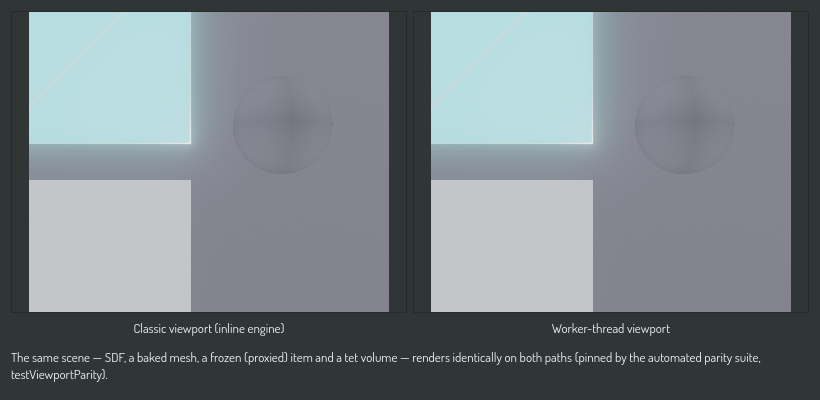
Both modes render the same things the same way — SDF models, imported and baked meshes, frozen (proxied) items, tet volumes, the export-bounds preview, selection and hover highlights, gizmos and every render setting. Parity is enforced by an automated suite that renders identical scenes through both paths and compares them pixel for pixel.
Before the first frame
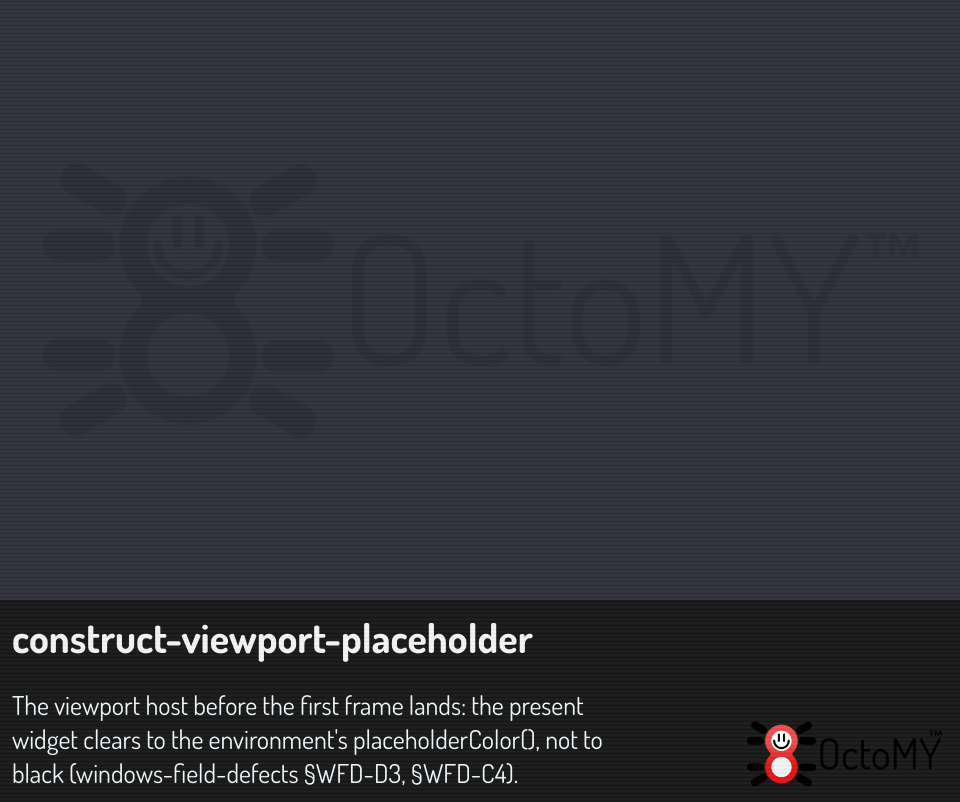
On a cold start the first frame waits for the shader compile. Until it lands, the viewport shows the placeholder color of the active environment. For the default gradient that is the color behind the model, not black.
While the shader of a scene builds, a thin white box outlines each item of the scene, so you can see where the items are before they draw. The box turns, moves and grows with the item: it follows the item's rotation, scale and position, and those of its parents. If you move an item while the shader builds, its box moves with it. A dimmer box means that Construct could not measure the item yet and shows a guess of its size.
Viewport interaction
The 3D view answers the mouse the same way in both modes. To cut the view open and inspect an interior, use a bounding volume's cutaway — see Inspect interiors with cutaway and the onion.
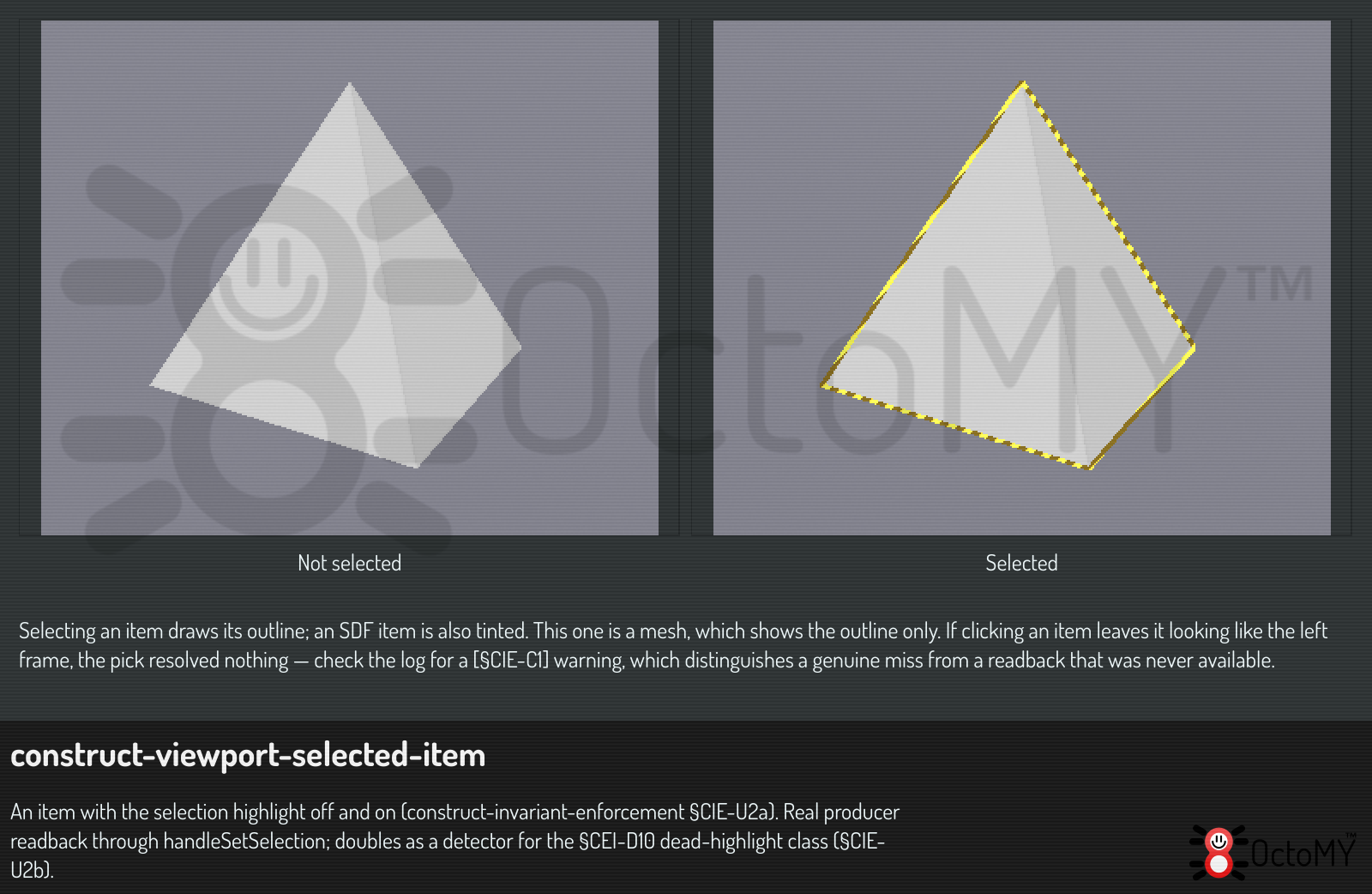
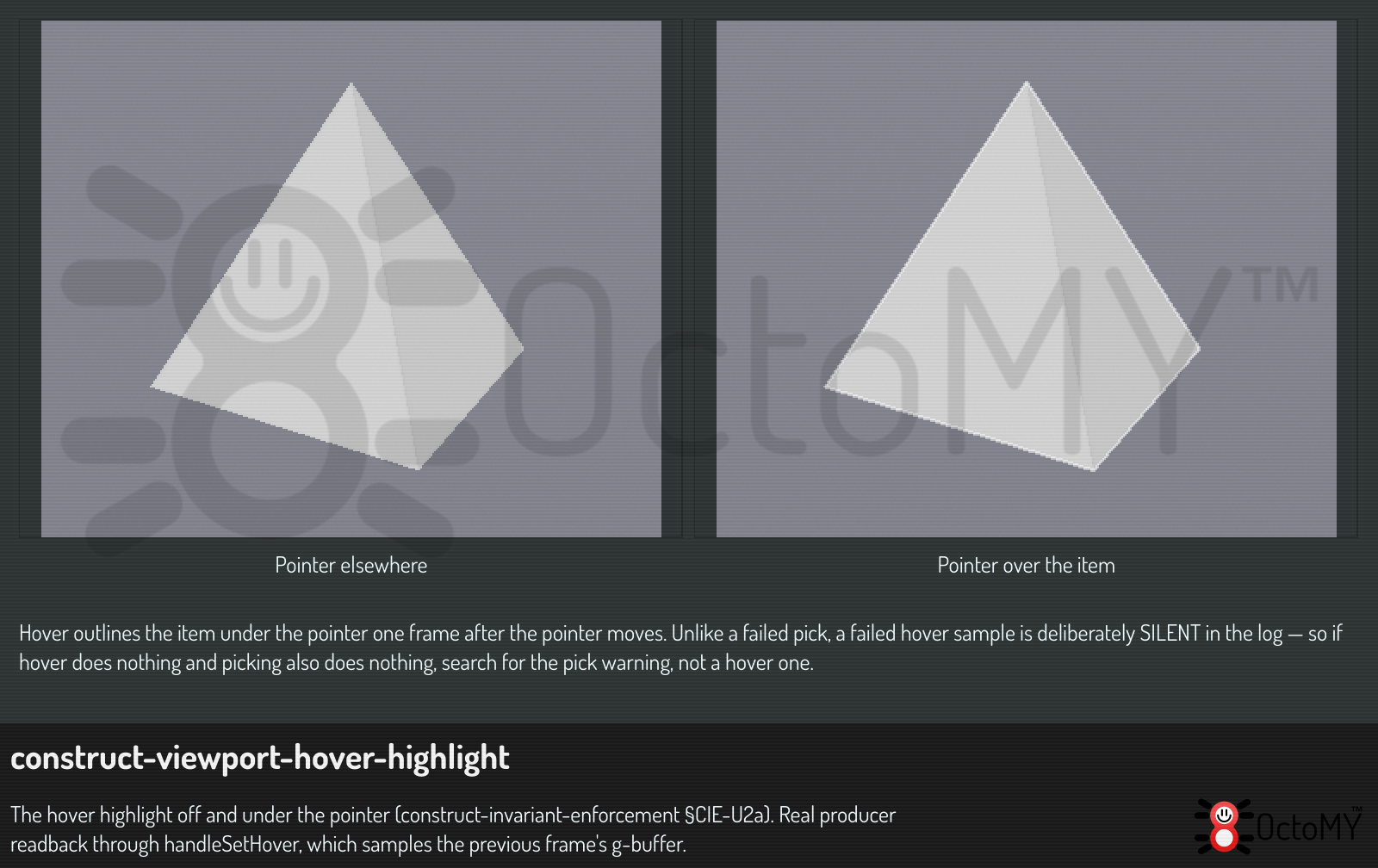
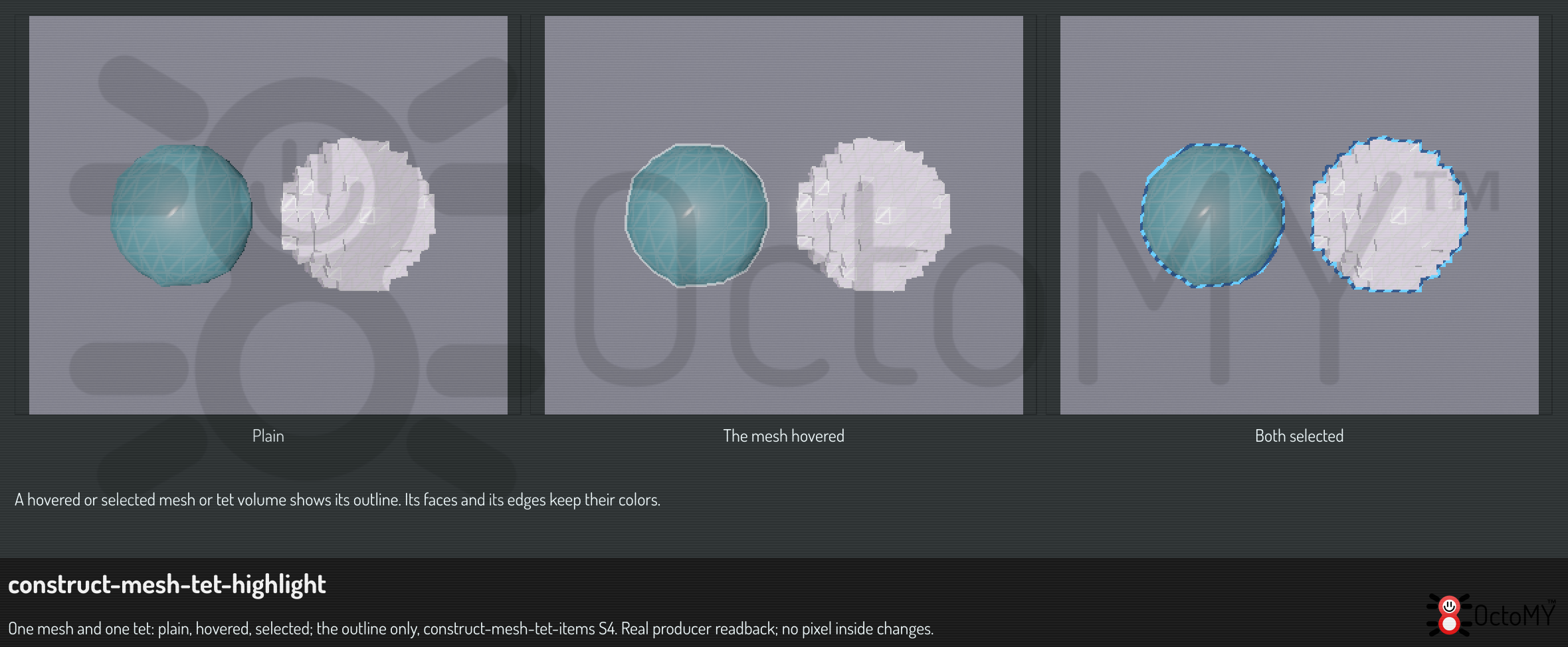
The highlight of a mesh or tet volume item is its outline. Its faces and its edges keep their colors, so you can still see its color while it is selected.
| Gesture | What it does |
|---|---|
| Left-click | Select the item under the cursor. Clicking empty space clears the selection |
| Left-drag on a gizmo handle | Move, rotate or scale the selected item |
| Right-click | Open the item menu for whatever is under the cursor — the same menu the scene tree offers for that item |
| Right-drag | Look around |
| Wheel | Zoom |
Right-click and right-drag are told apart by the same threshold that decides a click from a drag anywhere else in the viewport, so the two can never disagree about what you just did: a right button pressed and released without travelling opens the menu, and one that travels looks around instead.
The item menu needs a target, so it opens only over an item — the one already highlighted under your cursor. Right-clicking empty space does nothing. Selection is not changed by a right-click: the item under the cursor is already highlighted, so the menu's target is unambiguous without a click that has side effects you did not ask for.
Camera views
The number keys turn the camera to a fixed view of the whole scene, in a quarter of a second:
| Key | View |
|---|---|
| 1 | Front |
| 2 | Back |
| 3 | Left |
| 4 | Right |
| 5 | Top |
| 6 | Bottom |
| 7 | Isometric |
| O | Switch between perspective and orthographic projection |
The cube in the top right corner of the viewport turns with the camera. Each face shows the name of its view and the axis it looks from: Front +Z, Back −Z, Right +X, Left −X, Top +Y and Bottom −Y. The faces have the colors of their axes, the same colors as the gizmo and the ground's axes: X red, Y green, Z blue. A + face is stronger than its − face.
Click a face of the cube to look at that face, or an edge or a corner to look from there. The part under the pointer lights up before you click. Drag the cube to turn the camera around its target, as you turn the cube. Construct Viewer has the same keys and the same cube (View a mesh or a scene).
The scale bar
The scale bar in the bottom right corner of the viewport shows how long a stretch of the screen is in the scene. It has black and white segments with a label at each end of a segment. Its length is a round number: 1, 2 or 5 times a power of ten. The unit of the scene, such as mm, sits above the right end of the bar. The bar sits left of the other items of the corner and moves up above the animation panel when the panel shows.
Where the bar measures depends on the projection:
- Orthographic: one length holds everywhere in the view, so the bar is exact for every item.
- Perspective, the pointer over an item: the bar measures at the depth of the surface under the pointer. Hover an item to read its size.
- Perspective, the pointer over nothing: the bar measures at the camera's target. Items nearer than the target look larger than the bar says, and items farther away look smaller.
Hover the bar to see which of the three it uses. To hide the bar, turn off Scale bar in the Viewport category of the settings page (Ctrl+,).
Two items in one place
When two items cover the same surface, the viewport draws them as a checker: one item shows in a square, the other in the next. The common case is a mesh or tet volume you baked from an SDF item and left in place. Without the checker the two would fight pixel by pixel, a shimmer that changes every time the camera moves. On some graphics drivers one surface hides the other instead. Either way you could not tell that a second item is there at all.
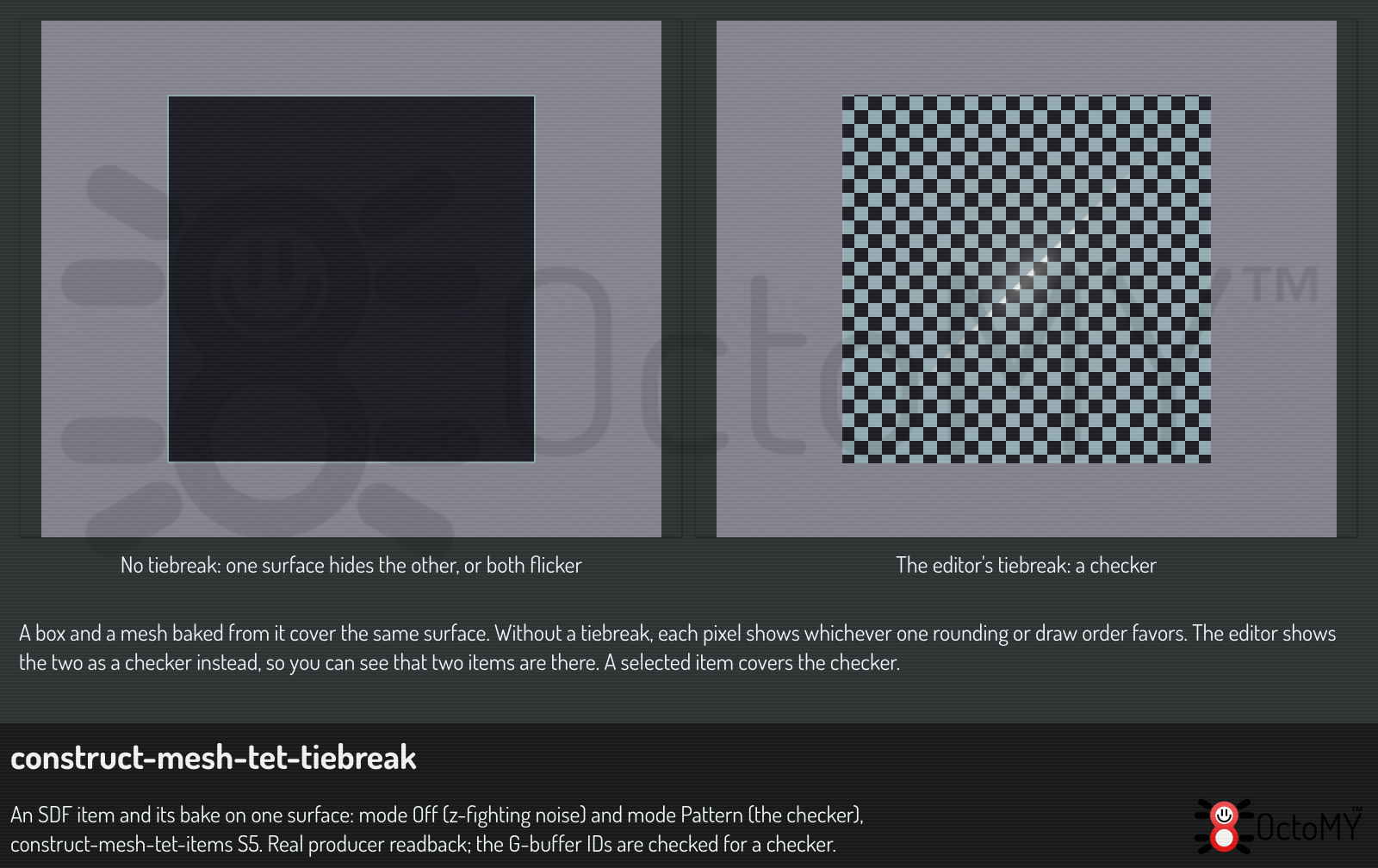
- The item you select covers the checker. Its whole region shows, so its outline is one outline. The same holds for the item under the pointer, so the hover does not jump from square to square.
- A pick returns the item you see, at the point where its surface really is. The checker moves each square a fraction of a pixel toward you, and the pick takes that back out.
- Only the editor shows it. A rendered image, a video and a thumbnail show one stable winner instead, with no pattern.
- A cut face never shows it. The face a cutaway volume opens is not moved, so the volume's outline stays on top of it.
A tet volume and the tri mesh baked from its boundary also cover one surface, and show the same checker. See Work with mesh and tet volume items.
Switch modes
- Open the settings page: the gear button in the toolbar, or Ctrl+,.
- In Write to, choose New scenes.
- Open the This machine category.
- Click Render on worker thread to switch it between Enabled and Disabled.
It sits in This machine rather than with a scene's look because that is what it is: which renderer this computer uses. The Scene level cannot hold it, which is why step 2 chooses New scenes. A document never carries it, so opening someone else's scene cannot change which renderer you are running.
The switch is live — no restart, no scene reload. Your camera, selection and render settings carry over, and switching back is just as seamless. The setting persists across sessions. While the worker viewport is active the inline renderer stays dormant (it compiles nothing); turning the worker off revives it on the spot.
First launch vs warm starts
The first time a given app version starts on a machine, the worker compiles its render pipelines in the background — the window is interactive immediately, and the first rendered frame follows a few seconds later. The compiled pipelines are cached on disk, so every later start skips that wait and the first frame arrives almost instantly.
On Vulkan, the graphics driver's compile of the scene's own shaders runs on a separate helper device, not on the thread that draws the viewport. The compile can take many seconds for a large scene, and meanwhile the viewport keeps drawing and the camera keeps answering. The white outlines of Before the first frame show where the items are until the scene draws. The helper's thread also writes the shader cache to disk, and only after it made a new pipeline, so a cache write does not hold up a frame. The classic viewport and Direct3D 12 compile on the drawing thread, as before.
After the scene draws, Construct builds a faster shader for it. This shader has the scene's item tree written out as code. The picture does not change, only the time of each frame. The viewport draws with the first shader until the faster one is ready, so no frame waits for it. Meanwhile the badge in the corner of the viewport has the line "Optimizing shaders". When you change the structure of the scene (add, remove or move an item in the tree), the faster shader is built again, after the first frame of the new structure. Its compile grows much faster than the scene, so on a large scene only the heaviest part of the tree is written out, and the rest keeps the first shader's method.
When the viewport does not respond
Clicks and hover highlights are answered by reading back the frame the GPU last drew. When that readback is unavailable — the graphics device was lost, the worker is mid-restart, or no frame has been drawn yet — the viewport has no answer, and it deliberately does nothing rather than guess.
Two failures look alike from the outside, and telling them apart is the most useful thing you can put in a bug report:
| What you see | What it means |
|---|---|
| Clicking selects nothing, and clicking empty space clears the selection | The viewport answered. You missed the item — a genuine miss |
| Clicking does nothing at all: the selection neither changes nor clears | The viewport had no answer. The readback was unavailable |
The two figures under Viewport interaction show what a working selection and a working hover look like. If clicking an item leaves it looking like the left-hand frame of the first one, the pick resolved nothing — which is the first case in the table, not the second.
The second case is deliberate. Treating no answer as you clicked the background would clear your selection on every click while the GPU was in trouble, turning a read failure into lost work. A viewport that cannot see therefore reports nothing, and your selection survives untouched.
It says so in the log. Every unavailable pick writes one line, tagged
[§CIE-C1]:
[§CIE-C1] pick readback unavailable at QPoint(412,233) — no selection change reported
If you see that tag, the viewport is not ignoring you — it is telling you it could not look. Hover deliberately stays quiet (it fires on every mouse move and would bury the log), so the pick line is the one to search for; it reports the same underlying failure, once per click. Include it when you report the problem. Switching to the classic viewport on the settings page is the quickest way to find out whether the worker is the cause.
First launch
The first launch on a machine bakes the viewport's shaders once. The header progress indicator shows the bake while the editor stays responsive. Later launches load the baked result from the cache and skip the wait.
Limitations & troubleshooting
- On GPUs where a second graphics context cannot be created — or if the worker fails for any reason — the editor falls back to the classic viewport automatically, tells you, and remembers the choice so the next start doesn't retry a broken path. You can re-enable the worker on the settings page at any time, under This machine.
- If the graphics device is lost repeatedly (driver resets), the worker viewport degrades gracefully: it keeps showing the last good frame and reports the problem. Your document is never affected — saving always works, and the classic viewport remains available.
- Under sustained load the worker lowers its render resolution briefly (adaptive quality) and restores it once the frame rate recovers.
- On machines with very limited GPU memory the worker's extra GPU context can matter; switching to the classic viewport frees it.