Sign in for reports
Paste a personal access token so the app can send your reports
Sign in for reports
Connect the app to the report server with a personal access token, so that it can send your bug reports and crash reports. You sign in once per app; the app keeps the token sealed on your computer.
Make an access token
- Open the report server's web page and sign in with your account.
- Make a personal access token with the scope
flypaper.submit. Without that scope the server does not accept reports from the token. - Copy the token. It starts with
fpt_.
You can give the token an expiry when you make it, and you can revoke it on the same web page at any time.
Paste it into the app
- Open the sign-in dialog in one of these ways:
- On the settings page, open the Diagnostics category and press Sign in….
- In the Send bug report window, press Sign in… beside Not signed in.
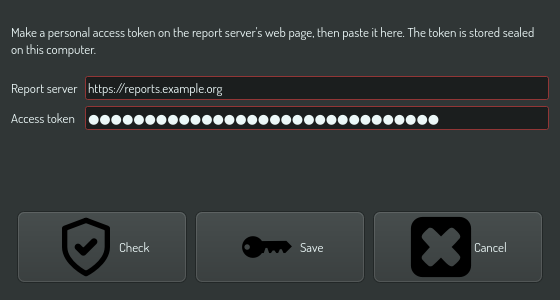
- Check the Report server field. It shows the server of your edition. Change
it only if you send reports to another server that runs
flypaper. - Paste the token into Access token. White space around the token is removed.
- Press Check to test the token without saving it, or Save to save it and test it.
Read the answer
| Message | Meaning |
|---|---|
| Signed in as ‹name›. | The token works. With Save, the dialog closes, and the settings show your name in Signed in as |
| Signed in as ‹name›, but this token cannot send reports. | The token lacks the flypaper.submit scope. Make a new token with that scope |
| The server does not know this access token. | The token is wrong, revoked or expired |
| A report server must use https://. | The address is not an https:// address. Only a server on this computer can use http:// |
| The report server is an address with no path, for example https://octomy.org. | Remove the path or the trailing slash from the address |
| The server did not answer. | The server or the network did not respond. Try again later |
Reports that waited in the queue go as soon as you sign in.
Sign out
On the settings page, open Diagnostics and press Sign out. The app deletes the stored token. Queued reports stay on your computer and wait until you sign in again.
If the server stops accepting your token, for example after you revoke it, the app signs you out by itself and keeps the reports.
Where the token is kept
The token is not a setting, so the settings page never shows it, and no OPAL
task can read or change it. The app seals it with a key of its own: a node app
uses its node's key store, and a standalone app such as Construct makes a key
store in keys/ in its data directory
the first time you sign in.