Diagnostic reports
What the apps keep on your computer, what a crash does, and who sees a report
Diagnostic reports
What every OctoMY™ app keeps on your computer so that a defect can be diagnosed, what happens after a crash, and who sees a report you send. Nothing goes to a server unless you press Send or choose to send crash reports automatically.
Why the apps keep evidence at all
A defect that happened on someone else's machine is hard to fix from a description alone. Before this feature, a field report from a new Windows laptop had to be assembled by hand: a verbose logging switch set before the run, the output of a few system tools, and pieces of a log copied into one text file. The app itself had kept nothing. Its log went to the terminal and nowhere else, and a crash on Windows left no trace of the app's own.
So every app now keeps its own evidence, all the time, and can put it into one size-limited zip, a diagnostic bundle, that you look at before anything is sent.
What every app keeps on disk
All of it lives in the app's data directory:
| Folder | What it holds | How long |
|---|---|---|
logs/ |
One log file per run, named <app>-<yyyyMMdd-HHmmss>-<pid>.log with the start time in UTC. At most 16 MiB per run. When a file is full, the oldest half is dropped |
The newest 10 runs, at most 96 MiB together. Each app deletes only its own files |
process-health/ |
The record of the run that is going on: when it started, which build it is, which log it writes, and a crash marker if it crashed | Until the next start reads it |
process-health/history/ |
The records of finished runs, and how each ended | The newest 20 runs |
reports/ |
Reports you made, sent or have not sent yet | At most 100. A sent report keeps only its record, for 30 days. An unsent one is deleted after 30 days |
keys/ |
A key that seals your access token, in a standalone app such as Construct | Until you delete it |
The log file is written through a memory-mapped file, so the lines up to a crash are in it even when the app dies without cleaning up. The log still goes to the terminal as before.
How much the log holds is the Log detail setting: Normal or Verbose.
For one run, the command-line flag --log-detail chooses it instead.
What a crash leaves behind
No single mechanism sees every crash, so each platform has layers:
- The run record. Each run writes a small record when it starts and a mark when it ends cleanly. At the next start, a record with no clean end means the run did not end normally, even if nothing else noticed: a forced kill, a power loss, or a crash that no handler saw.
- The crash marker. When a crash handler runs, it writes the signal or exception, the faulting address, the stack frames, the build and the name of the run's log file.
- On Windows, a crash dump. A small helper program watches the app from outside and writes a minidump when it crashes. When the app ends with a crash that no handler saw, the helper still records the exit code.
At the next start, the app turns what it finds into a crash report: the marker, the dump or the exit code, the run's log and the log of the run before it. It does this on a background thread after the main window shows, so the start is not slower. A crash report never holds a screenshot.
What happens next is your choice
The Crash reports setting decides what the app does with that report:
| Setting | At the next start after a crash |
|---|---|
| Ask | The report window opens by itself with the crash report. You press Send, or close the window and the report stays as a draft |
| Always send | The report goes in the queue and is sent when you are signed in. A small notice says that it went, with Review to look at it |
| Never send | The report stays on your computer as a draft. You can still review and send it from the list of reports |
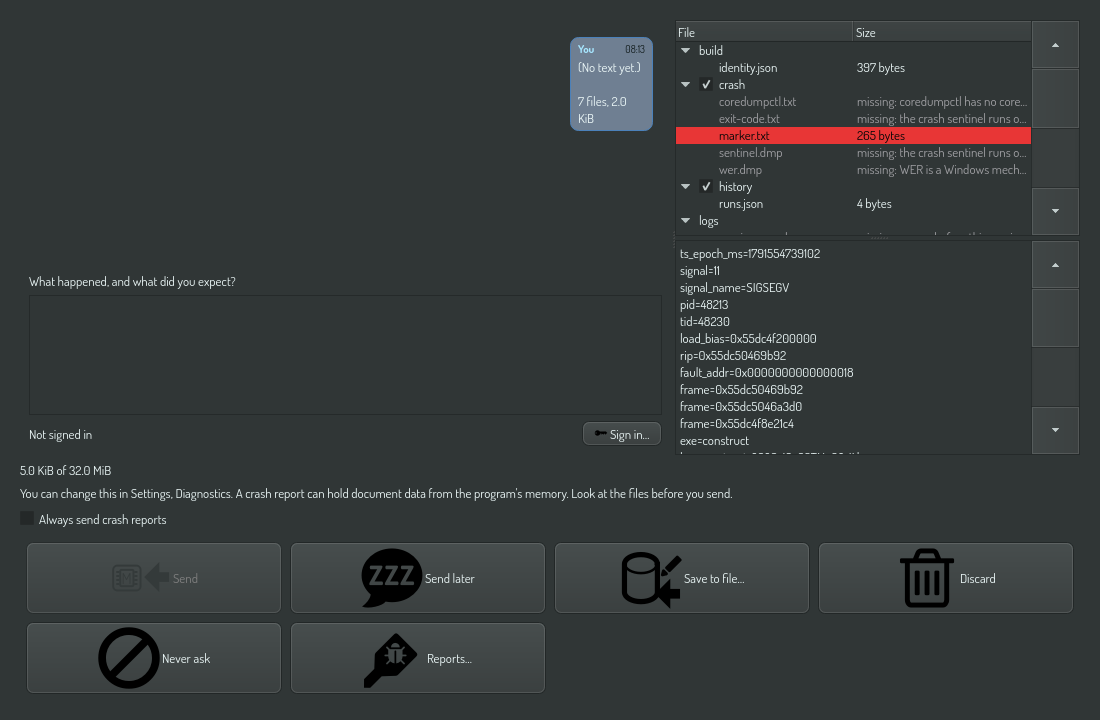
In a crash report, the composer has two extra controls. Always send crash reports sets the setting to Always send when you send with the box ticked. Never ask sets it to Never send and closes the window. The first time a crash report opens and you have not chosen yet, the composer reminds you that you can change this in Settings, Diagnostics.
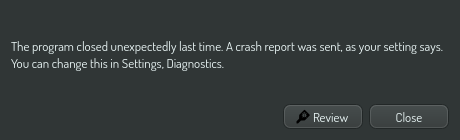
The defaults differ by build. A release build starts at Ask, with the Always send box clear, so sending crash reports automatically is something you opt into. A debug build, which developers run, starts at Always send, with the box ticked. No OPAL task can change this setting: only you can, in the settings page or in the report window.
Always send still needs you to be signed in. Without an access token, a queued report waits on your computer.
What a bundle can hold
| Part | Content |
|---|---|
| The report | Your text, the trigger and the time |
| The build | Version, commit, variant and edition, so the report matches its build |
| The system | The operating system, the memory, the graphics stack and the screens |
| The logs | The run's log, and after a crash the log of the run before |
| The crash files | The marker, and on Windows the dump and the exit code |
| The history | How the last runs ended |
| The settings | Every setting except secret ones, with its value |
| The screenshot | The main window, in a report you start yourself |
Your home directory is replaced by <home> in every text file of the bundle.
Secret settings and your access token are never in it.
A crash dump is not redacted, and it can hold document data. It is a copy of
part of the app's memory at the moment of the crash, and that memory can hold
pieces of what you were working on. The report window says so for every crash
report. If that matters, look at the files, and clear the crash/ check box
before you send.
The full list of files and limits is in Diagnostic bundle.
What goes over the network, and when
The app contacts the report server only when you act:
- when you press Check or Save in the sign-in dialog, to ask the server who the token belongs to;
- when a report is queued, which only Send, Send later, Retry or the Always send setting does.
A report request carries your access token, the report's id and the bundle, and nothing else that identifies you or your machine.
Who sees a report, and for how long
A report goes to the report server of your edition, which runs a service named
flypaper. The developers of the project read it there. The server keeps a
report for 180 days and then deletes it. You can delete your own reports earlier
on the server's web page, the same page where you make and revoke access tokens.
A debug build can also send the log of the first minute of each start, as a startup report, so a developer sees every start's warnings. Only a debug build has the Startup logs setting, and a release build never makes one. The server keeps a startup report for 7 days.
How to delete reports
- On your computer: open the list of reports and press Delete, or press Discard in the report window. A report you never send is deleted after 30 days anyway.
- On the server: use the server's web page.
- The logs and run records are deleted by the app as newer runs replace them.
You can delete the
logs/folder of a stopped app at any time.