Send a bug report
Describe the defect, review every file, remove what you do not want to share, and send
Send a bug report
Send a report of a defect from inside the app: describe what happened, look at every file the report holds, remove what you do not want to share, and send it. Nothing leaves your computer until you press Send.
Before you start
- To send a report, you must be signed in to the report server. If you are not, you can still write the report and save it, and sign in later. See Sign in for reports.
- If your edition names no report server, the composer offers Save to file… only. Send the saved file another way, for example as an attachment to an issue.
Open the composer
- Choose Send bug report…. Where it is depends on the app:
- In Construct, Paint, Bahn and Auda, press the Help button on the toolbar.
- In Singularity, press Help under About.
- In Hub, Agent and Remote, open the main menu. The entry is beside Help.
- The app takes a screenshot of the main window first, so the composer is not in the picture. Then it opens the Send bug report window and collects the files of the report. This takes a moment, and the window says Collecting the files of the report… while it works.
After a crash, the composer can also open by itself at the next start, with the crash report in it. What it does depends on the Crash reports setting. See Diagnostic reports.
Write what happened
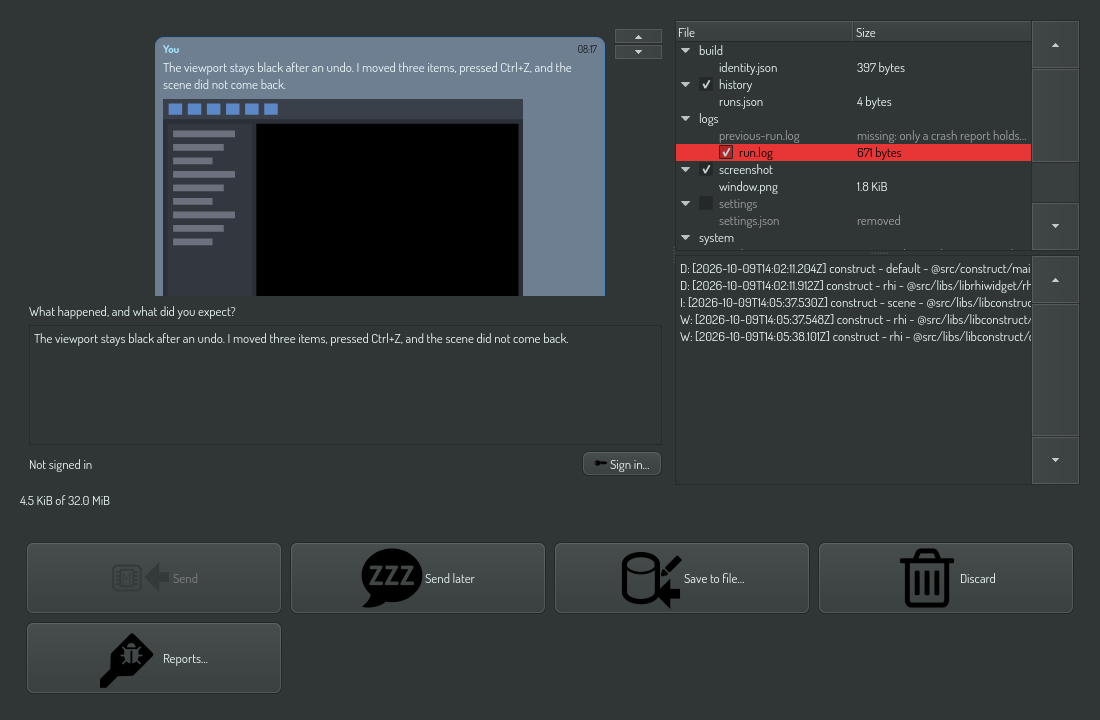
Type into the field under What happened, and what did you expect? Say what you did, in the order you did it, and what you expected instead. "I moved three items, pressed Ctrl+Z, and the viewport stayed black" is worth more than a long log with no context. The text is optional, but a report without it is much harder to act on.
The left side shows the report as it will arrive: your text, the screenshot, and a summary line with the number of files and their size.
Look at the files
The tree on the right lists every file of the report, folder by folder, with its size. Select a file to see its content below the tree: the text of a log, the picture of the screenshot, or binary, N bytes for a crash dump.
A file in grey is not in the report. Its reason is beside it, for example "the reported run did not crash". The report says what it looked for and did not find, so a gap reads as a gap.
The full list of folders, files and limits is in Diagnostic bundle.
Remove what you do not want to send
A folder with a check box is optional. Clear its check box to leave it out:
| Folder | Holds |
|---|---|
logs/ |
The log of the run, and after a crash the log of the run before it |
crash/ |
The crash marker and, on Windows, the crash dump |
history/ |
How the last runs ended |
settings/ |
Your settings, except secret ones |
screenshot/ |
The picture of the main window |
The build, the system description and the report itself have no check box, because a report without them cannot be matched to a build. The line under the tree shows the size of the report, for example 3.2 MiB of 32.0 MiB, and changes as you remove folders.
Note
The screenshot shows the main window only. Other windows and popups are not in it.
Send it
| Button | What it does |
|---|---|
| Send | Sends the report now. Enabled when you are signed in |
| Send later | Puts the report in the queue. It goes when you are signed in and the network answers |
| Save to file… | Writes the report to a .zip file that you choose, with your text and without the folders you removed |
| Discard | Deletes the report |
| Reports… | Opens the list of every report on this computer |
When you press Send, the app makes the report again from your choices and uploads it. A progress bar shows the upload. You can close the window while it runs: the upload continues.
What the reply means
The server's answer appears as a reply under your report:
| Reply | Meaning |
|---|---|
| Received. Report ‹id›, at ‹time›. | The server stored the report. The id is the server's name for it, if you need to refer to it later |
| The report was not sent: ‹reason› It stays in Reports, where Retry sends it again. | The server refused it, or the app gave up after its retries |
| ‹reason› The report waits until you sign in again. | The server no longer accepts your access token. Sign in again, and the report goes |
When the network or the server does not answer, the app tries again after 1 minute, 5 minutes, 30 minutes and 2 hours. After that the report is Failed.
See the reports on this computer
Choose Reports… where you found Send bug report…, or press Reports… in the composer.
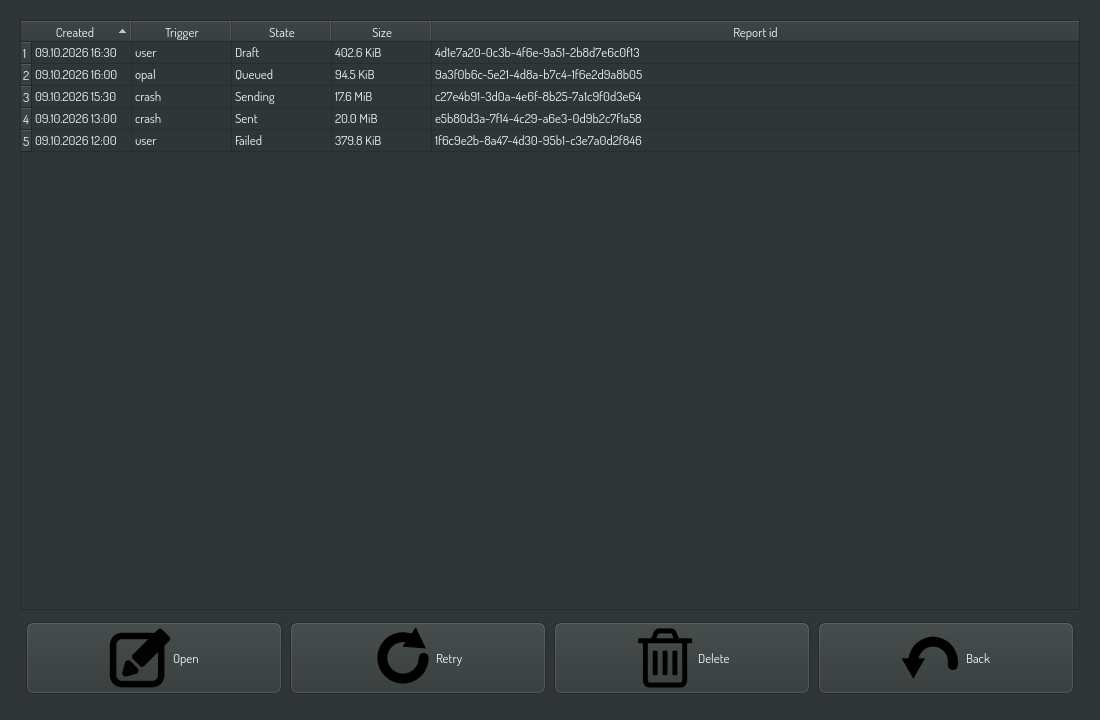
The table shows each report with the time it was made, its trigger (user,
crash, opal or startup), its state, its size and its id:
| State | Meaning |
|---|---|
| Draft | Made and not sent. A crash report waits here until you review it |
| Queued | Waits to be sent, for example until you sign in |
| Sending | The upload runs now |
| Sent | The server stored it. The app keeps a record for 30 days and deletes the files at once |
| Failed | Not sent. Point at the row to see the reason |
- Open shows the selected report in the composer.
- Retry queues a failed report again.
- Delete removes a report and its files.
The app keeps at most 100 reports, and deletes a draft or a failed report after 30 days.