Give a shortcut another key, see a conflict, and reset it
Change a keyboard shortcut
Every keyboard shortcut is a setting. This page shows how to find a shortcut in the settings window, give it another key, see when two shortcuts want the same key, and put a shortcut back to the key the app came with.
Open the shortcuts
Each app opens the settings window on its Keyboard shortcuts category:
| App | How to open it |
|---|---|
| Paint | The Shortcuts… button in the toolbar above the canvas |
| RTS | The Shortcuts… button in the match panel below the board |
| Bahn | F1 |
| Auda | F1, or the help button in the toolbar |
| Trove | F1 in a lane |
| Construct | Ctrl+,, then Keyboard shortcuts in the left column |
Ctrl+, opens the settings window in every app. From there, select
Keyboard shortcuts in the left column.
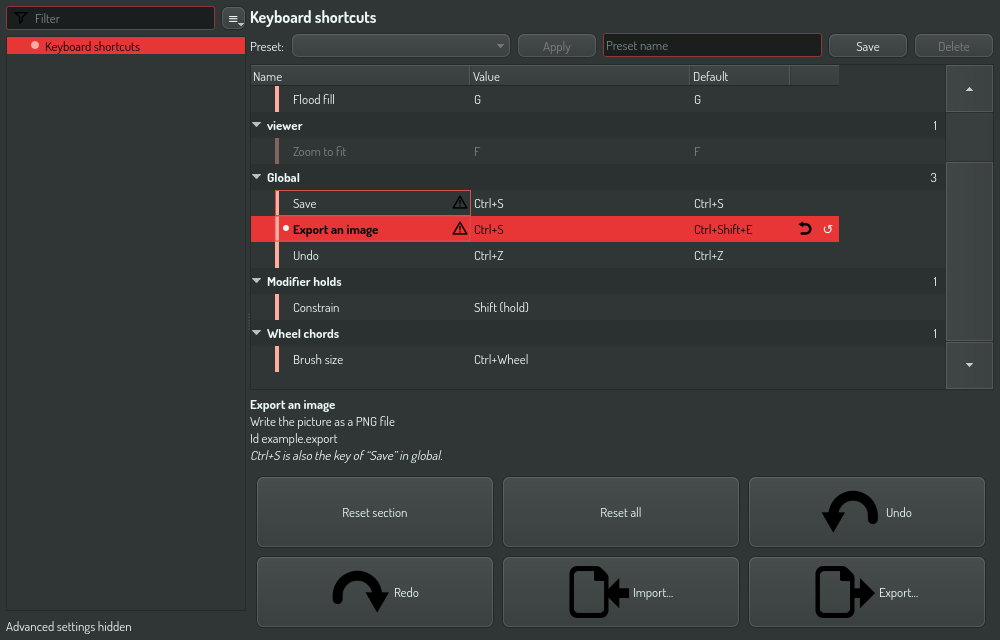
The category has a section for each part of the app that takes keys, for example the canvas, the board or the pattern editor. Global holds the keys that work everywhere in the app. The rows of the part you came from are at full strength, and the rows of the other parts are dimmed. A dimmed row still works in its own part, and you can still change it.
Type in the filter field to find a shortcut. The filter looks at the name, the
description and the section, so zoom, canvas and undo all find rows.
Give a shortcut another key
- Click the key in the Value column. The cell asks you to press a shortcut.
- Press the new key combination, for example
Ctrl+K. The cell closes when you let go of the keys.
The new key works at once, and the app keeps it when it starts again. The Default column still shows the key the app came with.
A key combination is one key with or without modifiers. Sequences of two
combinations, such as Ctrl+K, Ctrl+S, are not supported. To take a key away
from a shortcut, click the clear button in the editor.
When two shortcuts want the same key
Two shortcuts conflict when they have the same key in the same section, or when one of them is in Global. Both rows get the warning mark, and the tooltip and the detail strip below the table name the other shortcut. In a conflict, the shortcut of the part you are in wins over the Global one.
The settings window keeps the key you typed, so you can swap the keys of two shortcuts in two steps: give the first one the second one's key, then give the second one a new key. The marks go away when the conflict does.
Two shortcuts in two different sections, for example the pattern editor and the sequencer, can share a key. Only one of them listens at a time.
Reset a shortcut
Click the reset button at the right of the row. The shortcut gets the key the app came with. Reset section and Reset all in the footer do the same for every shortcut of a section, or of the category.
What you cannot change here
The Modifier holds and Wheel chords sections list the keys you hold
while you drag or turn the mouse wheel, for example Shift to draw a straight
line. They are shown so you can look them up, and you cannot rebind them.
See also
- Paint workbench — the wheel chords and the tap or hold keys of the canvas.