Pair via LAN Discovery
Find nodes on local network
Use the network pairing activity to find and pair with OctoMY™ nodes on your local network. This is the default method the Pairing landing recommends — works on any home or lab network where the devices share a subnet.
You're on the right page if…
Your Agent and Remote are both on the same WiFi or wired network. If the network blocks UDP broadcast you may still want to fall back to Pair via QR for proximity-based pairing.
Prerequisites
- Both devices on the same local network
- UDP broadcast permitted on the network (most home networks do)
- Ports 8124 (Agent) and 8125 (Remote) not blocked by firewall
- An Agent and a Remote already created — see Your first Agent and Your first Remote if not
Step 1 — Open Pairing on both nodes
On the Agent: open the main menu, tap Pairing. The PairingMenuActivity opens with three buttons — Network, Scanner, Done. Tap Network.
On the Remote: same path — main menu → Pairing → Network.
Both nodes are now in their NetworkPairingActivity. Each starts broadcasting its presence and listening for peer announcements; no toggle to flip, no setting to enable. The status line reads "Pair with Agents" (or "…Remotes" depending on which side you're looking at), and a PairingListWidget below it will populate as peers are discovered.
Step 2 — Wait for the peer to appear
Discovery uses UDP broadcasts on a few-seconds cadence — both sides should see each other within ~5–15 s. Each discovered peer renders as an AssociateListItemWidget row:

The row carries the peer's identicon (a shield-style trust icon while still un-paired), its generated name (e.g. "Thundering Walrus"), node type (Agent / Remote), connection state, and channel availability indicators. Tap Refresh if your peer hasn't appeared after ~30 s.
Multiple peers on the same network?
The list shows every peer that's currently in pairing mode. Use the identicon to confirm you're looking at the right one — it's deterministically derived from the peer's cryptographic key, so it can't be spoofed without breaking the cryptography. Tapping a peer whose identicon you don't recognise is the most common mistake; verify before proceeding.
Step 3 — Initiate the pair
Tap the peer's row to start the pairing handshake. Both nodes perform the cryptographic exchange in the background — there is no Accept/Reject dialog on either side at this point. When the handshake completes, the activity transitions to PairingTrustActivity.
Step 4 — Set the trust level
PairingTrustActivity opens. At the top: a PortableNodeIDWidget showing the peer's identity, and a VerificationContextWidget for cross-checking the identicon. Below: the TrustSelectorWidget — three large icons in a row.
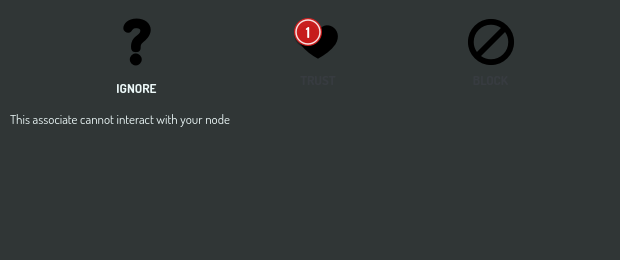
| Level | What it means |
|---|---|
| IGNORE | The peer is tracked in your address book but has no operational interaction. Default. |
| TRUST (①) | Full operational relationship. Pick this for your own Agent/Remote. |
| BLOCK | Refuse all communication from this peer. |
Tap the icon you want; the CapabilityDescriptionWidget below updates with a one-liner describing what that level allows. The selection commits as soon as you tap.
Step 5 — Verify the connection
Both devices show a connected status. On the Agent, the paired Remote appears in its address book; on the Remote, the paired Agent. From here you can:
- Send your first control command — see Your first connection
- Adjust trust later — reopen Pairing on either side; the AssociateListItemWidget for the peer carries an editing surface
- Pair a second peer — repeat Steps 1–4
How LAN discovery works under the hood
DiscoveryClient manages the protocol on both sides:
- UDP broadcast on port 8124 (Agent) / 8125 (Remote)
- Periodic announcements every few seconds
- Responses to discovery probes from other nodes
Broadcasts are scoped to your local subnet, so they never leave the network — which is the privacy property that makes LAN discovery suitable for trusted environments.
Network requirements
Ports
| Port | Protocol | Purpose |
|---|---|---|
| 8124 | UDP | Agent broadcast + listen |
| 8125 | UDP | Remote broadcast + listen |
Firewall
Pro Tip
On Linux, the firewall often blocks UDP by default. If discovery isn't finding anything, the firewall is the most common cause.
Linux (ufw):
sudo ufw allow 8124/udp
sudo ufw allow 8125/udp
Linux (firewalld):
sudo firewall-cmd --add-port=8124/udp --permanent
sudo firewall-cmd --add-port=8125/udp --permanent
sudo firewall-cmd --reload
If something goes wrong
| Symptom | Most likely cause |
|---|---|
| Peer never appears in the list | Firewall blocking UDP; not on same subnet; isolation rules on the access point |
| Multiple peers appear, none look right | Other OctoMY™ users on the same network — identify by identicon |
| Pairing handshake fails | Network drop mid-handshake; or one side closed PairingActivity early |
| Trust level doesn't stick | The PairingTrustActivity wasn't reached; re-tap the peer to re-pair |
See Troubleshoot Pairing for the full diagnostic flow.
Related
| Topic | Why it's relevant |
|---|---|
| Pairing — pick a method | The landing that points here; alternative methods listed |
| Pair via QR | The most common alternative method |
| First-time pairing | Composite recipe that lands at the pairing step |
| Discovery and Pairing | Conceptual background |
| Trust Levels | What IGNORE / TRUST / BLOCK mean |