Paint settings
Open the paint settings window and find each setting
Paint settings
Paint keeps its settings in one settings window: stroke smoothing, bloom, the canvas overlays, the checker colors, the canvas status, the engine limits and the diagnostic switches. This page tells you how to open it and where each setting is.
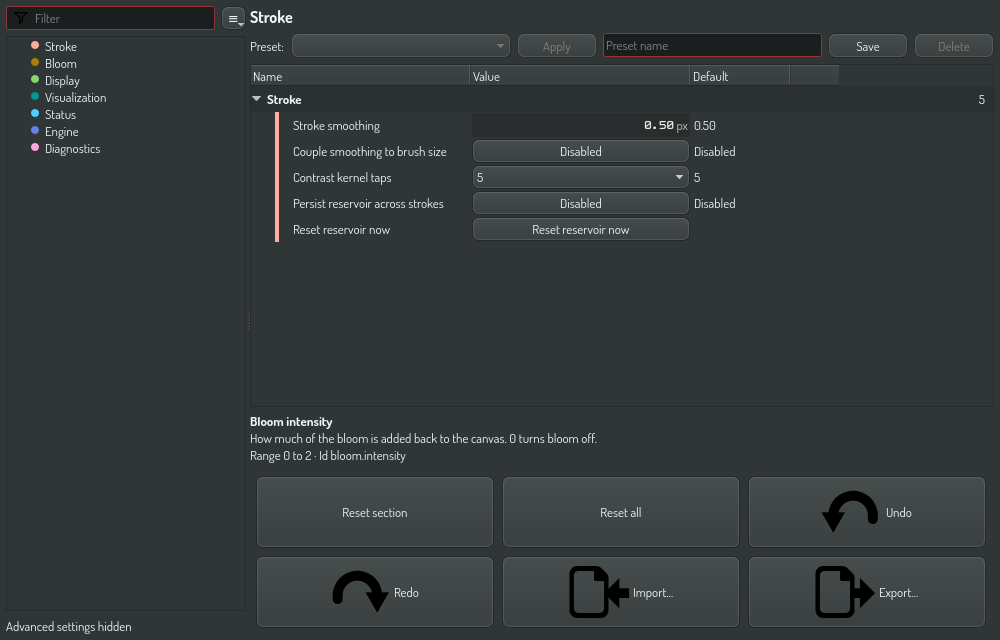
Open the settings window
Use one of these:
- Press Ctrl+, while Paint has the focus.
- Click Settings in the paint toolbar.
- Click the settings button in the title bar of the tool palette.
The window stays open beside the canvas. A change applies to the canvas at once, and Paint saves it in the settings of this node. A few settings apply only at the next start. When you change one, a banner at the top of the window says "Restart Paint to apply" and names it.
The tool palette had a Config tab with these controls before. The settings window replaces it, so the palette now has two tabs: Tools and Areas.
Where each setting is
| Category | Settings |
|---|---|
| Stroke | Stroke smoothing, Couple smoothing to brush size, Contrast kernel taps, Persist reservoir across strokes, Reset reservoir now |
| Bloom | Bloom intensity, Bloom threshold, Bloom radius, Skip bloom while drawing |
| Display | Show angles in degrees, Palette opacity while drawing, Normalized color display |
| Visualization | Chunk overlay opacity, Chunk swarm symbols, Ownership overlay, the preview checker colors, the canvas checker colors, Area overlay opacity |
| Status | Canvas engine, Current canvas, GPU memory. These rows show information and you cannot change them |
| Engine | Resident chunk limit, Adaptive render scale, Zero-copy present, Semaphore sync, Operation log limit |
| Diagnostics | Log chunk operations, Vulkan validation, Accelerated canvas engine |
The settings in Engine and Diagnostics are advanced settings. To see them, open the ≡ menu beside the filter field and check Show advanced.
Type a word in the filter field to find a setting, for example bloom
or checker. The detail strip under the table describes the selected
setting and shows its range.
Change and reset a setting
- Select the row of the setting.
- Change the value in the Value column: drag a number, click a toggle, pick a color or pick from a list.
- To go back to the default, click the reset button at the end of the row.
The Undo button of the window undoes the last change.
Things to know
- Bloom. Paint saves the bloom values at most once every 400 ms while you drag. The canvas shows each step.
- Contrast kernel taps. The value is 1, 5, 9 or 13. 1 turns the kernel off.
- Chunk overlay opacity. The default is 0.3 in a debug build and 0 in a release build.
- Area overlay opacity. The Areas tab of the tool palette sets the same value. 0 hides the named areas on the canvas.
- Resident chunk limit. The maximum number of canvas chunks in GPU memory. Paint removes saved chunks that are off the screen past this limit, and loads them again when you scroll back. The default, 0, sets the limit from the GPU memory.
- Adaptive render scale. When the GPU cannot keep up, the canvas image has a lower resolution until the load goes down. The colors do not change. It is off by default.
- Zero-copy present and Semaphore sync. They apply the next time Paint opens. Zero-copy present is on by default, and it engages only where the window and the canvas engine can share the GPU. Semaphore sync applies only with zero-copy present, and it is off by default.
- Operation log limit. The maximum size, in bytes, of the operation log of a canvas. Past it, Paint removes the operations that the last checkpoint holds, so undo goes back less far. The default is 256 MiB (268435456 bytes). 0 is no limit.
- Vulkan validation. It applies to the Hub window at the next start.
--rhi-validateor--no-rhi-validateon the command line wins over the setting. See Run with the Vulkan validation layer. - Accelerated canvas engine. Off uses the compatibility renderer, which has one canvas and no autosave or sharing. It applies the next time Paint opens. See Canvas responsiveness & performance.