Cell types in the spreadsheet
Every cell in the OctoMY spreadsheet holds a number. Most of the time that is all you need to know — type 42, type =A1 * 3, and the sheet does the arithmetic.
Some cells need to hold more than one number: a position, a colour, a direction. This page explains when that happens, when the sheet works it out for you, and how to say so explicitly when it cannot.
The short version
| A cell is a decimal number unless something says otherwise | you never have to declare anything |
| A formula that produces several numbers makes the cell hold several | =vec3(1, 2, 3) gives you a three-component cell |
| You can force a cell's type by right-clicking it | for cells that must be a vector before anything writes to them |
Cells are numbers by default
Type a value or a formula and you get a decimal number. There is no type to pick and no property to set:
A1 = 5
A2 = =A1 * 3      → 15
A3 = =A1 + A2     → 20
This is the case you will be in almost all of the time.
Some formulas produce several numbers at once
A few functions return a group of numbers rather than a single one. The most common is vec3, which bundles three:
A1 = 5
A4 = =vec3(A1, A1 * 2, A1 * 3)     → (5, 10, 15)
You did not tell the sheet that A4 holds three numbers. It worked that out from the formula, the same way it works out that =A1 * 3 holds one. The cell then shows all three components instead of a single value.
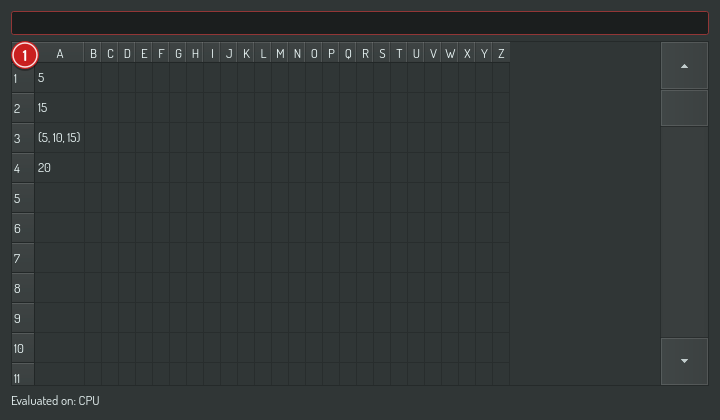
This matters most when you are driving something that wants three numbers — a position, a rotation, an RGB colour. You write the formula that produces them and the cell carries them.
Pro Tip
Where the sheet cannot work out what a formula produces, the cell stays a plain number. You will not get a surprising type from an ambiguous formula.
Forcing a cell's type
Inference works from the formula, so it can only help once a formula exists. A cell that has to hold three numbers before anything writes to it — an input you plan to drive from a slider, for instance — needs to be told.
Right-click the cell and pick a type:
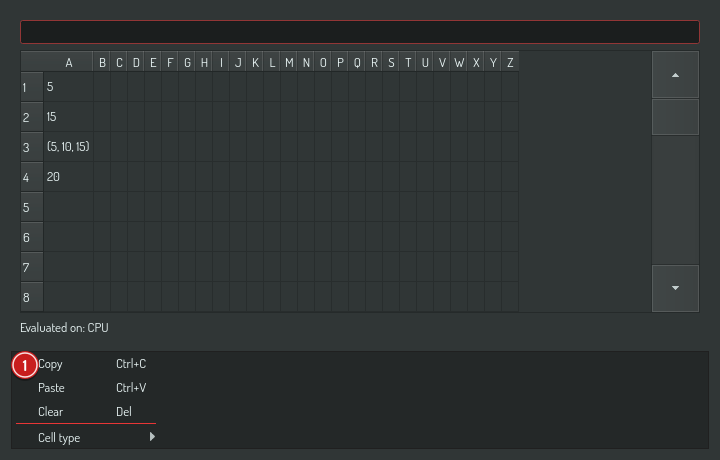
- Infer is the default and means "work it out from the formula" — that is the behaviour described above.
- Picking anything else fixes the cell to that type.
- The menu acts on everything you have selected, not just the cell under the pointer. Select a column, right-click, pick a type, and the whole column is set.
If the cells you selected already disagree about their type, nothing is ticked — the menu is not going to pretend the first one speaks for the rest.
What an override actually does
Forcing a type wraps your formula in a conversion. Setting a cell to vec3 when its formula is =A1 gives you vec3(A1), which spreads the single value across all three components:
A1 = 2
B1 = =A1        with B1 forced to vec3     → (2, 2, 2)
Narrowing works too, and follows the language's own rule — forcing a vec3 formula down to a plain number keeps the first component:
C1 = =vec3(1, 2, 3) forced to a number → 1
Some conversions have no meaning at all. Forcing a two-component formula up to four components is one of them: there is no rule that says what the missing two should be, so the cell reports an error rather than inventing them.
When a formula is refused
If a formula cannot be compiled, the error appears on the cell that caused it — not as a sheet-wide banner, and not silently:
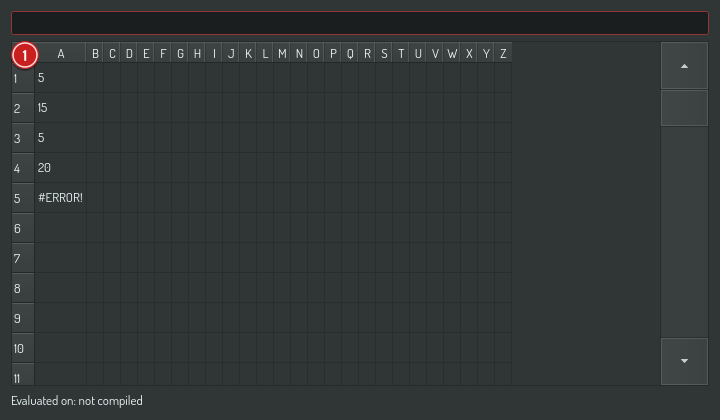
Cells that depend on a broken cell are not each marked as broken; the first error is the one worth showing you.
A circular reference — A1 reading B1 while B1 reads A1 — marks every cell in the loop, because a circular reference is a property of the set rather than of any one of them. If what you actually want is a cell that reads its own value from the previous frame, that is a different thing and it is spelled differently: see previous-frame values.
See also
- Use the spreadsheet for calculations — the basics
- Fast formulas — what makes a sheet fast, and what is not compiled
- Previous-frame values —
prev(A1)and animation loops