Choose an audio output in Singularity
Pick the output device, route songs to a pair of outputs, and check it with the test tone
Singularity plays the preview, the backing track and the jingles through one output device. This page shows how to pick that device, how to route the sound to the right outputs of a multichannel interface, and how to check the result with the test tone.
Open the settings page
Click Settings in the lobby or in the track list. In the standalone
Singularity app, Ctrl+, opens it too. The settings page fills the window, and
the back arrow in its header returns to where you were. A change applies at
once, so you can change a setting and hear the result with the test tone.
Opening the page stops the menu music.
The page has three categories in its left column:
| Category | What it holds |
|---|---|
| Tracks | The tracks folder, Refresh tracks, and how many songs Singularity found |
| Audio | The output device, the channel layout, the output pair, the test tone, the game volume and the menu music |
| Microphones | The microphone of each of the four players, with a level meter |
Type in the filter field at the top to find a setting by name, for example
pair. Every change applies at once and is saved; Undo takes it back.
Pick the output device
- Select the Audio category.
- Open the Output device list. Every output device is listed with its
channel count, for example
AudioBox 1818 VSL Multichannel — 14 channels. System default follows whatever device your operating system plays on. - Select the device your speakers or mixer are connected to.
Singularity remembers the device by its system id. When you unplug it and plug
it back in, Singularity finds it again. If the device is missing when
Singularity starts, the list shows it with (disconnected) and Singularity
plays on your system's default device until it returns.
The Detected layout row shows how Singularity reads the device:
| Layout | Meaning |
|---|---|
Speakers (stereo), Speakers (5.1), Speakers (7.1) |
The channels are speaker positions. Stereo songs play on the front left and front right speakers. |
Separate outputs (14) |
The channels are numbered line outputs, like the back panel of a studio interface. You choose which pair the songs play on. |
Route the sound on a multichannel interface
An interface such as the PreSonus AudioBox 1818 VSL has many separate outputs. Singularity plays songs in stereo, so it needs to know which two outputs to use.
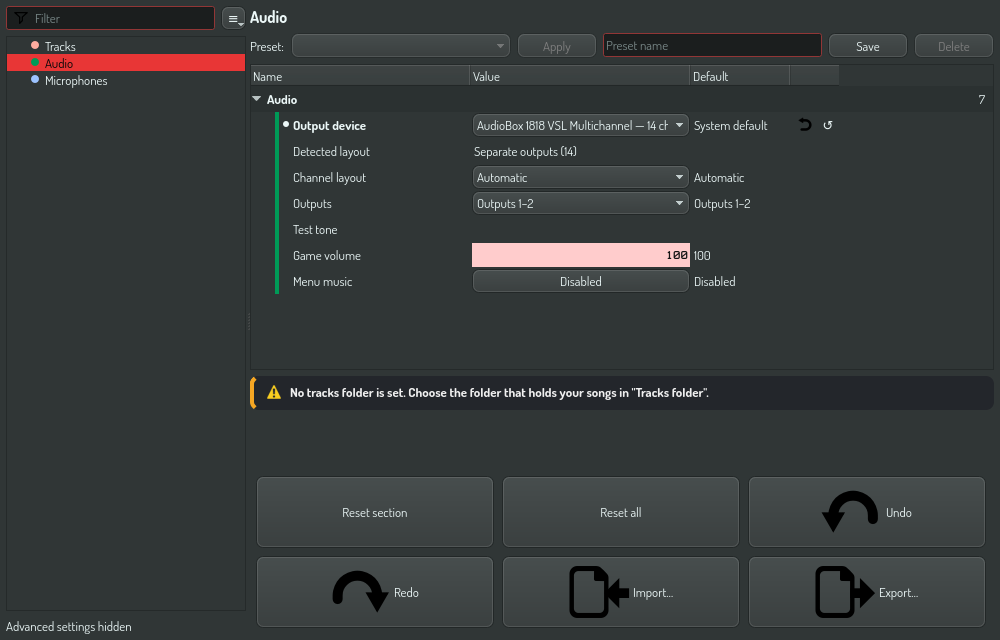
- Select the interface in Output device.
- Open the Outputs list and select the pair your monitors are connected
to, for example
Outputs 1–2orOutputs 3–4. - Press and hold Hold to play in the Test tone row. You hear a 440 Hz tone on the pair you selected, and on no other output.
Singularity remembers the pair for each device, so a second interface keeps its own choice.
When the channels play on the wrong speakers
Some small interfaces with 2 to 8 separate outputs report themselves to the
operating system as if they were a speaker layout. Singularity then shows
Speakers and plays the front left and front right channels, which is usually
outputs 1 and 2.
If the sound comes out of the wrong outputs:
- Open the Channel layout list.
- Select Separate outputs. The Outputs row now applies.
- Select the pair and check it with the test tone.
Select Automatic to go back to what the device reports. Speakers is not offered for a device with more than 8 channels.
A row that does not apply to the current device is dimmed, and the line under the table says why. You can still change it, so you can prepare a setting before you switch devices.
Platform notes
- Separate outputs are available on Linux with PipeWire, and on Windows. On other systems every device plays as speakers, and the Outputs and Channel layout rows are dimmed. The operating system's sound server then decides which outputs play the stereo signal.
- A PipeWire loopback sink, for example a
Main Stereo (Out 1+2)sink that your own PipeWire configuration adds on top of an interface, does not appear in the list. Select the interface itself and pick the pair instead.
See also
- Diagnose a missing audio device
- Singularity OPAL tasks, to script the same settings
- Audio engine reference