Sharing your canvas — replication and access
The paint canvas can be shared across your devices over the swarm: paint a stroke on one hub and it appears on the others, with no server in the middle. Each device keeps a local copy; the swarm replicates the pieces peer-to-peer so any participant can reconstruct the canvas.
This guide covers turning sharing on, what you will see, and the few things it needs to work.
Turning sharing on
Sharing is not a global switch you flip — it is a canvas you select.
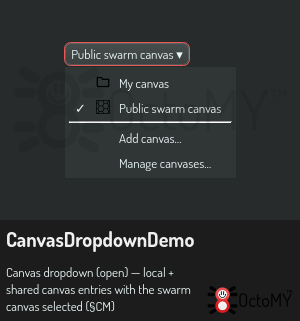
Every paint node has a built-in "Public swarm canvas" listed in the
canvas dropdown at the top of the Paint activity (marked 🌐). Choosing
it in the dropdown is going online: the node begins publishing your
strokes to the swarm and following everyone else's. Switching back to a
local canvas (🔒) takes you offline again. There is no separate
"enable canvas sharing" checkbox — that older paint/swarm/enabled
flag was removed in favour of the dropdown.
Two things still have to be in place underneath it:
- Swarm — enabled on each hub (
swarm/enabled). This is what makes the hub a peer that can host and fetch content. Without it the swarm canvas has no network to replicate over and stays local. - Pairing — the hubs must be paired, each knowing and trusting the others as associates, the same pairing you use for any other peer-to-peer feature. Pairing is what tells a hub which peers it can replicate to and fetch from; without it there is nobody to share with.
Which canvas you join
Selecting the built-in swarm canvas joins the same shared space on every device — one canvas, addressed by a well-known id. It is a normal entry in your canvas list, so you can switch between it and your private local canvases at any time; switching in starts following the shared head, switching out stops.
What you will see
- Paint a stroke on hub A. As the stroke settles, A stores it and announces the new canvas state to the swarm.
- Hub B notices the update within about a second, fetches the pieces it is missing from the peers hosting them, and the stroke appears on B's canvas.
- A hub that joins later fetches the current canvas the same way — it does not need to have been present when earlier strokes were made.
Fetching is on-demand: a hub pulls the parts of the canvas it is actually looking at, so opening a large shared canvas does not download all of it up front.
While a canvas is catching up
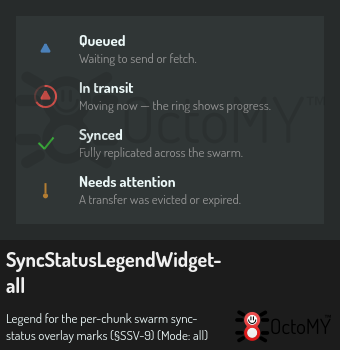
Between steps 1 and 2, B is fetching. The chunks it does not have yet
are marked on the canvas with a sync-status overlay — a small badge
per chunk showing whether it is waiting, in transit (with a progress
arc), or already in sync. The overlay is only present while there is
something left to fetch: once the canvas is fully caught up it fades
away on its own, so a settled shared canvas looks exactly like a local
one. The header also carries a swarm badge, and the Current canvas
row of the paint settings says
syncing N of M chunks while a fetch is in flight.
What sharing means for your storage
Replication is mutual: when you share a canvas, your edits are hosted by your peers, and in return your hub hosts pieces of theirs. How many copies of each piece the network keeps is governed by the canvas's replication metadata (see the reference below). More copies means the canvas survives more peers being offline, at the cost of more hosted data.
Owning your part of the canvas — lots and claims
A shared canvas is common land by default: anyone can paint anywhere. You can also claim a lot — a chunk of the canvas that becomes yours alone to paint. Claims are backed by your storage stake: the more swarm data your hub hosts for others, the more land you can hold (host-to-own). Other hubs enforce this — an edit to someone else's lot is refused locally and dropped by peers.
- See the lots — turn on Ownership overlay in the Visualization category of the paint settings. Your lots draw in green, other owners' in a stable per-owner color with a short owner tag, and unclaimed land as a faint dotted outline. The overlay is off by default; painting stays the primary mode.
- Claim a lot — press Claim lot in the paint toolbar (visible on shared canvases), then click the chunk you want. The overlay shows while you aim. A toast reports the result: granted, already owned, or not enough storage stake — host more swarm data to earn more land.
- Unclaimed land stays paintable by everyone in v1; claiming is opt-in until lot ownership becomes the norm.
Requirements & limits (v1)
- Pairing is mandatory — an unpaired hub has no peers to replicate to or fetch from, so nothing is shared.
- At least one paired peer must be reachable for a canvas to leave your device and for another device to reconstruct it.
- Sharing is last-writer-wins per canvas update: if two hubs edit while briefly disconnected, both edits are kept in history and the most recent one becomes the visible head when they reconcile. There is no per-pixel merge in v1.
See also
- Canvas responsiveness & performance — the background render worker that keeps painting fluid, including while a shared canvas is fetching.
- Replication metadata reference (
replicationFactor/syncPriority) underreference/paint/— the knobs that control how many copies of a shared canvas the network keeps.