Read the chat surface
The chat overlay shows more than the conversation. A status line reports what the model is costing you, a selector decides what runs without asking, and the input accepts pictures as well as text. This page covers all three.
The status line
The status line sits on the busy bar, to the right. It reports facts, and it hides anything the provider does not report rather than showing an empty gauge. A blank space means "nobody supplied this number", which is different from zero.
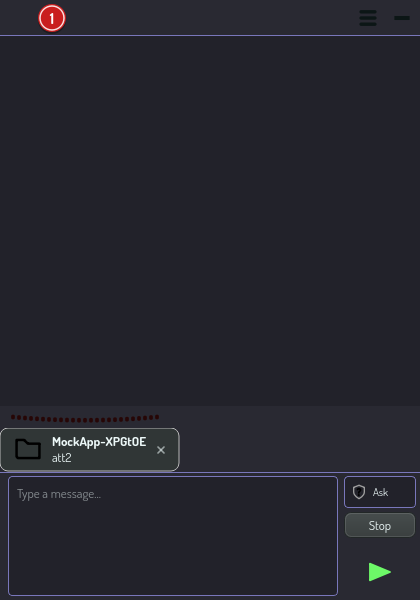
What can appear:
- The model name. The name the provider gave for the last turn when it gave one, and the configured name otherwise. Hover it to see which.
- Tokens spent. Read from the usage record the application already keeps, so this figure and your usage history cannot disagree. Hover for the split between input and output, the number of turns, and the estimated cost.
- A context bar. How much of the model's context window this conversation has used. It fills as the window is spent.
- A quota bar. How far through a rate-limit window the clock is —
5hor7d, with the time left.
Two things the bars do not mean
A bar always fills as something is SPENT, never as headroom. A full bar means "used up", in every bar on this line.
The quota bar measures the CLOCK, not your usage. The provider reports the
window and when it resets, and no spend percentage. So 5h 60% means you are
sixty percent of the way through the window, not that you have used sixty
percent of it. Hover for the reset time.
Choosing what runs without asking
Beside the send button is the permission selector. It decides what happens when the assistant proposes a plan of tasks.
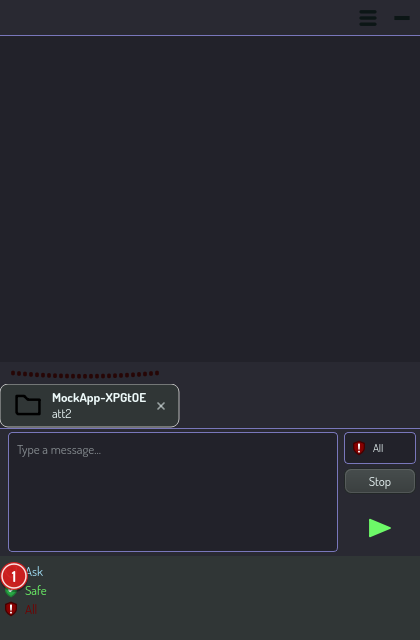
| Mode | What it does |
|---|---|
| Ask | Prompts you before running any plan. |
| Safe | Runs tasks marked safe on its own, and prompts for the rest. |
| All | Runs every plan without asking. |
All is red and carries a warning mark because it removes the last step where you can say no. Each change is written into the conversation, so the transcript always shows which mode a turn ran under — including when the assistant changes it itself.
The choice is remembered per node.
From a plan or a script
Two tasks reach the same setting, for hosts with no window:
hub --opal 'llm.permission.get' -c
hub --opal 'llm.permission.set mode=safe' -c
llm.permission.get is worth calling before asking for something destructive:
it tells you whether a plan will run without the user seeing it. A mode outside
the three is refused with the list rather than guessed at.
Putting a picture in a prompt
Paste an image, or drag a picture file into the input. Either way it becomes a chip in the text, which you can position, select and delete like a character. Hover a chip to see a larger preview.
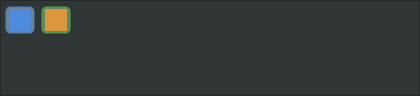
The two origins are treated differently, and the chips show it.
- A pasted picture had no file behind it, so one is written into the capture directory. It belongs to the application and can be cleaned up later with the rest of the captures.
- A referenced file is one you already had. It is read where it lies and never copied, changed or removed.
That difference matters when you are freeing space: pruning captures can remove a pasted picture from an old conversation, and will never touch a file of your own.
A chip whose file has disappeared before you send is dropped with a warning, and the turn still goes.
See also
- Use the chat overlay — opening it, docking it, and dropping folders in.
- Troubleshoot errors — when the overlay says it cannot answer.