Frame a region with bounding volumes
A bounding volume is a box you place in the scene — around a whole model, around one part of it, or around empty space you care about. It is a real scene item: it has a name, a position, a size and a rotation, it can be parented under other items, and every one of its fields can be driven by an expression like any other parameter.
You use volumes to frame regions: to read off a part's true dimensions, to cut the view open and look inside (Inspect interiors), and to mark regions for export (One-click export). This page covers creating and shaping the box itself.
Create a volume
Right-click an item in the scene tree, choose Add before... (or Add child... on an item that takes children), and press Bounds in the picker's action bar. The new volume is created fitted to that item's geometry and becomes the active volume (the one marked ●). Right-click the scene root instead to fit the whole scene.
A new volume starts with cutaway on — creating a box around something is usually the first step of inspecting or exporting it, so the cut engages immediately. Turn it off from the row's cutaway toggle if you only want the frame.
Millimetres. Every length in a Construct scene is millimetres. The readouts on the volume's panel row honor the scene's display unit; other surfaces do not convert yet.
Resize with the face arrows
Select a volume and six yellow arrows appear, one per face. Drag an arrow to move that face along its axis.
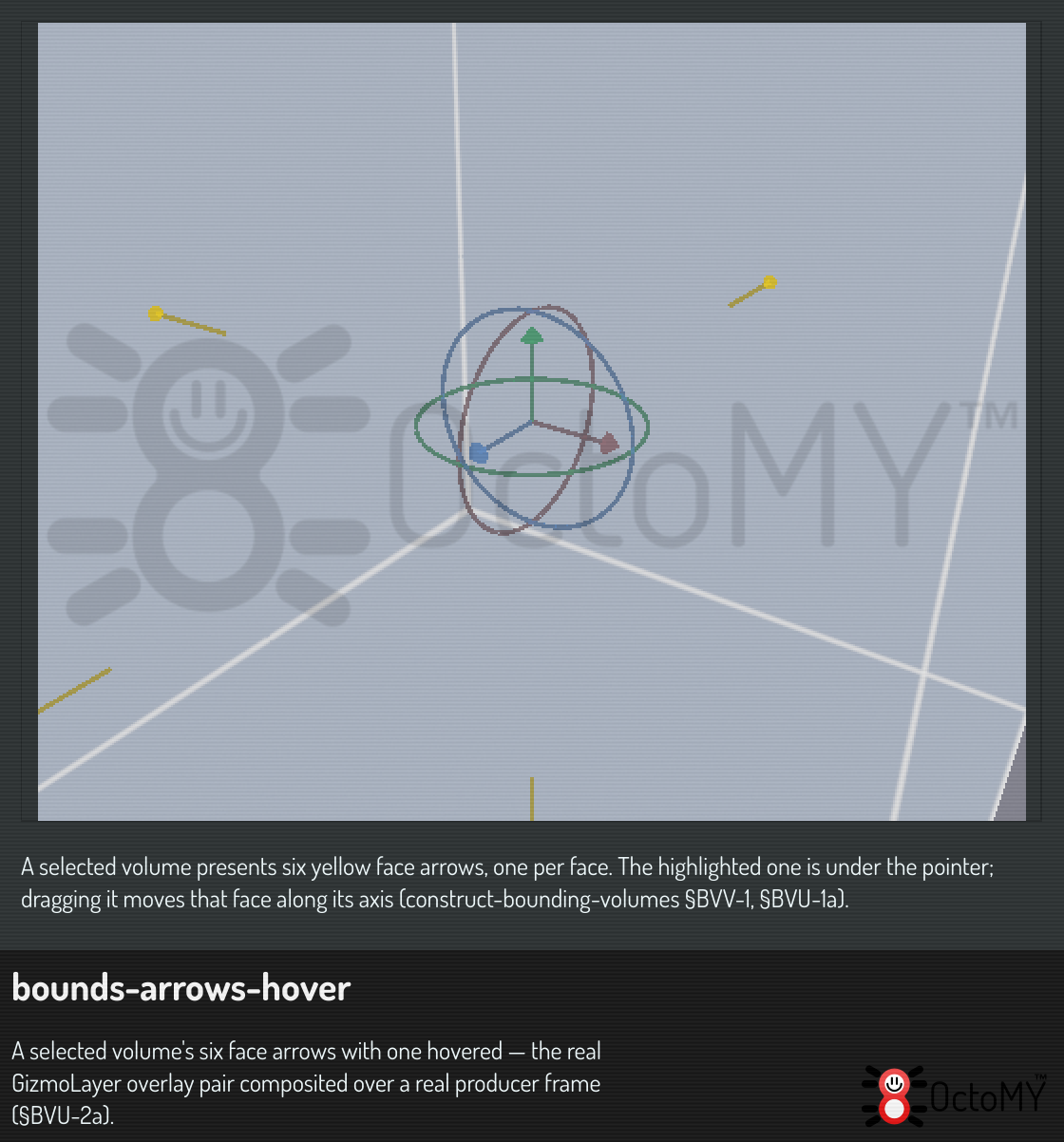
Two modifiers change what a drag means, matching Inkscape's conventions:
| Modifier | Effect |
|---|---|
| Shift | Symmetric — the opposite face moves the mirrored amount, so the center stays put. |
| Ctrl | Aspect — the other two axes scale along, so the box keeps its proportions. |
One drag is one undo step, like every other gizmo drag.
While dragging, snapping applies: the grid, the geometry's own surfaces, and round numbers each propose positions, and the nearest one within reach wins. The HUD pill in the viewport corner names what the drag snapped to.
Fit actions
The volume's panel row has a Fit button that opens a menu of scopes. Every fit measures the real surface of its scope — it is not a rough guess from parameters:
- Fit to selection — wrap whatever object is selected in the scene.
- Fit to parent — wrap the volume's parent item and everything under it.
- Fit to scene — wrap every object in the scene.
The volume's fit padding field adds a margin on every side. A fit clears the volume's rotation: a fitted box is axis-aligned in its frame by construction.
Lock a volume
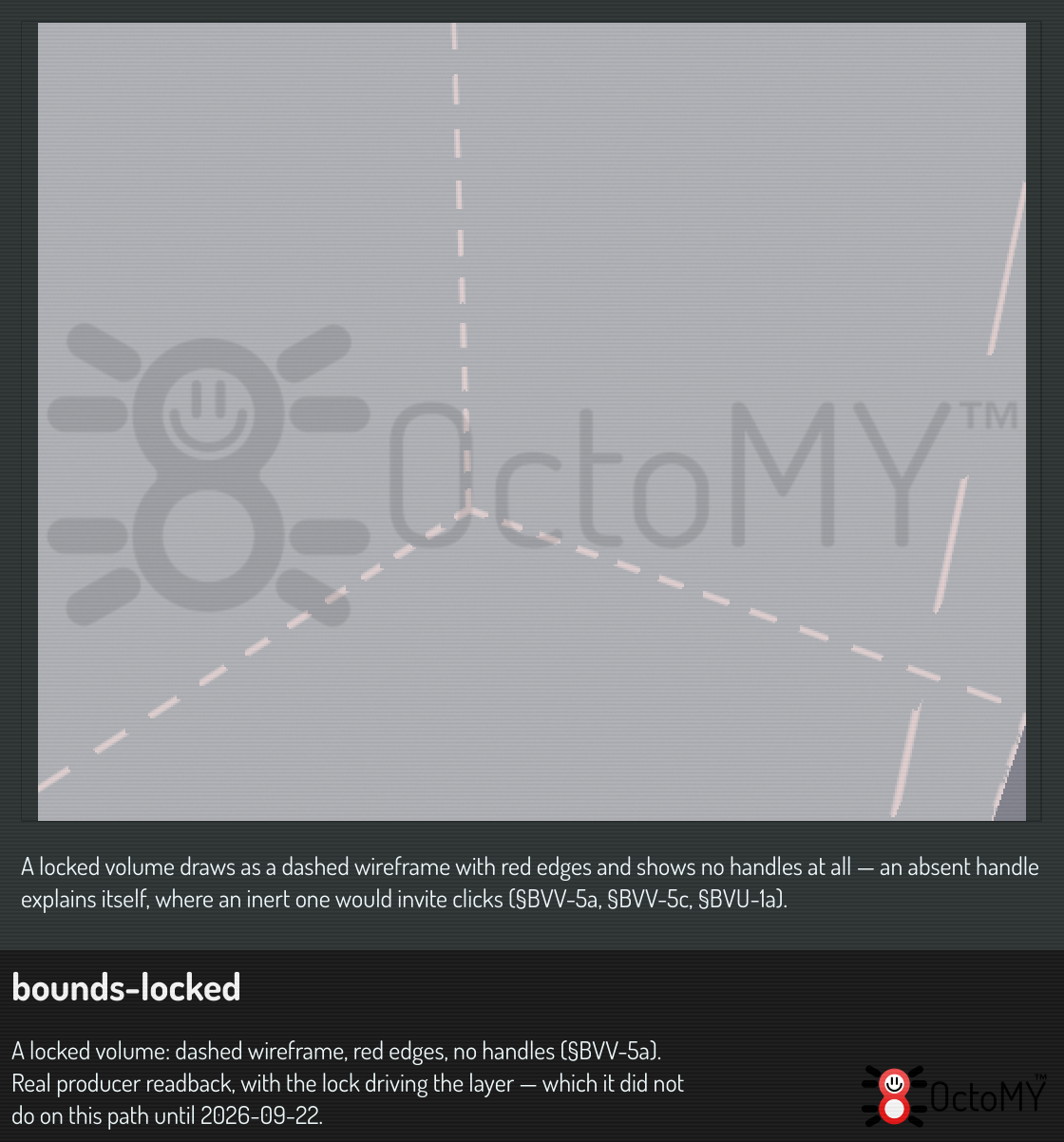
Lock a volume from its row to protect the box from accidental drags. A locked volume draws as a dashed, desaturated wireframe and shows no handles.
Read the panel row
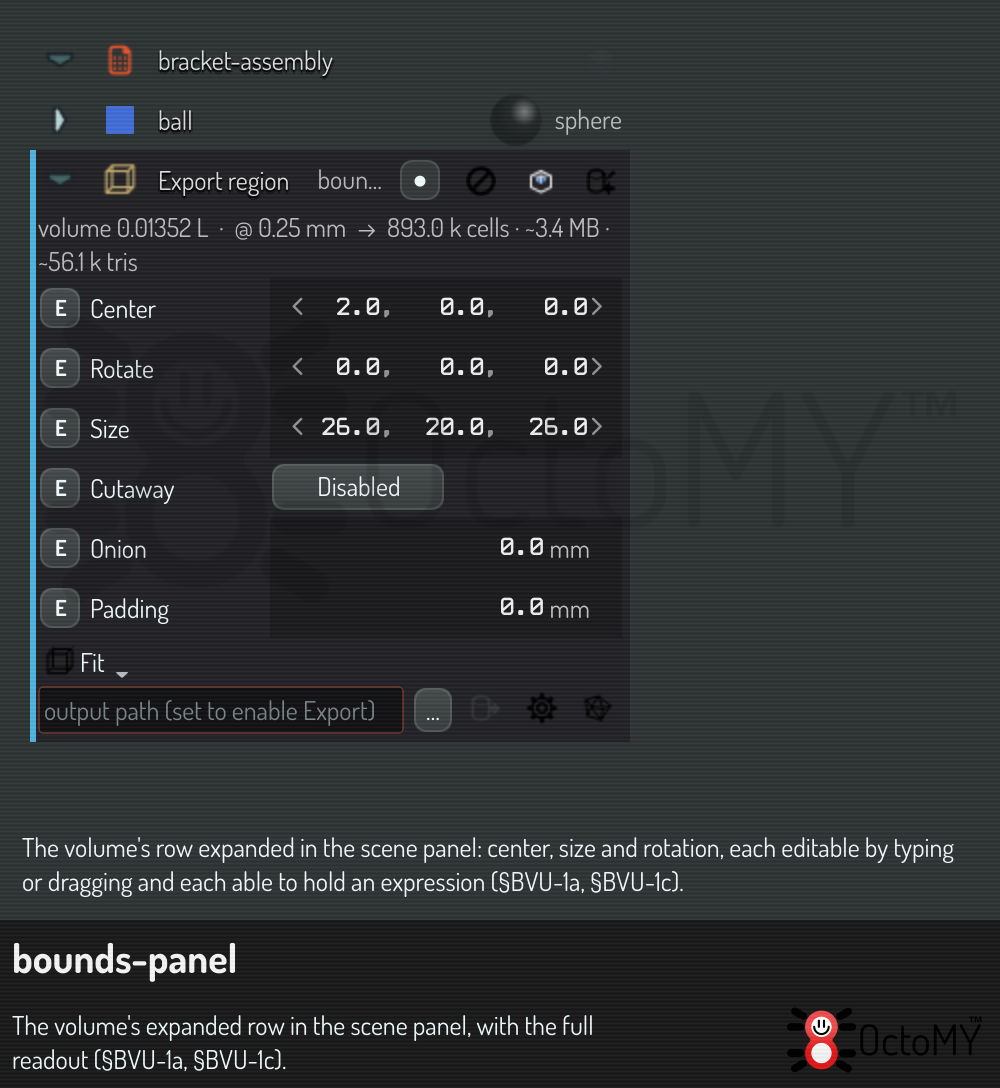
Expanding the volume's row in the scene panel shows the full readout — center,
size and rotation, each editable by typing or dragging, and each able to hold
an expression (type = to start one). Size fields never go below a tiny
positive minimum: an inverted box has no meaning.
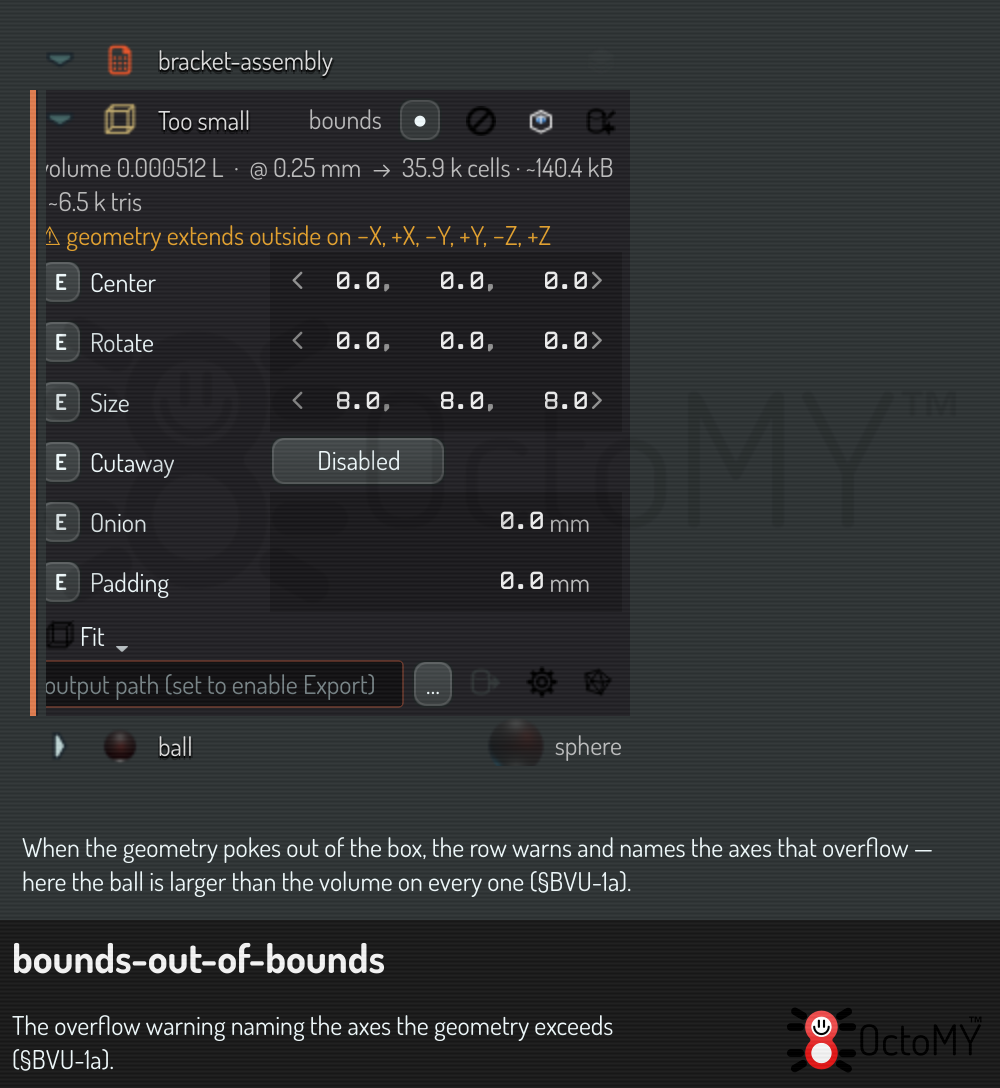
If the volume's geometry pokes out of the box, the row shows a warning naming the axes that overflow.
Parenting and rotation
A volume parented under an item follows that item's position and rotation — move or turn the parent and the box goes along. It keeps its own size, so a scaled parent does not resize it. The box's own rotate field turns the box about its center. A rotated volume cuts and exports along its true tilted faces, not along a world-aligned approximation.
Active — exactly one
At most one volume per scene is active (●). The active volume is the one the cutaway follows and the one an export uses when nothing else is named. Activating one volume deactivates the others; you never have to hunt for a second live box.